
User manual



ROUTE 66 Mobile 8 Chicago 8000 - User Manual
51
4. Display the location on the map. Select Main menu > Navigate to
start a new navigation.
Your favourites could belong to different maps! However, you
cannot start navigating to a favourite that doesn’t belong to
the current map!
Searching Coordinates
You can search a location by entering its latitude and longitude. This is a
more advanced feature and leads you to precise results.
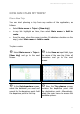
1. Select Main menu > Search
> Latitude / Longitude.
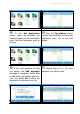
2. In the Latitude section select
each input field.
3. Enter a correct numeric value.
Use
Backspace
to correct. Save
values.
4. Repeat steps 2 and 3 for the
Longitude section.
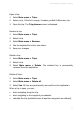
5. Start the search. The location
will be indicated on the map.
6. Select Main menu >
Navigate to start a new
navigation. Or, in the contextual
menu select Navigate to.
You may start searching by only
adding the latitude numeric values, only the longitude ones, or any
combination.
You can search any place worldwide! The search is not limited
only to the current map. Any location will be displayed at street
level (if you already bought the corresponding detailed map) or
at a higher level of 200 km or 100 miles (if you don’t have a
license of use for that map).