
User manual
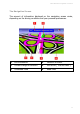
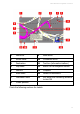

ROUTE 66 Mobile 8 Chicago 8000 - User Manual
21
HOW CAN I START NAVIGATING?
Navigate Menu
Use this section to start navigating to a place. After you choose a location,
you can start navigating towards it, save it or add it to a trip.
Navigate options:
Locations - Search for a
location by typing a city name, a
street name, or the destination
name.
Favourites – Search in the list
of your favourite places.
History – Search in the list of
history records (locations you visited or used recently).
Points-of-interest – Select a category and search points-of-interest
located along the current trip, around the departure or the destination
of the current journey, around the cursor position, or around the GPS
position.
Latitude / Longitude – Search for a location by entering its
geographical coordinates (latitude and longitude).
For a more detailed description of these features, refer to the Searching
section.
Search a Location and Start Navigating
1. Select Main menu > Search.
2. Select the relevant database: Locations, Favourites, History,
Points-of-interest, Latitude / Longitude.
3. Start the search query.
4. Select an item from the list of results.
5. Select Main menu > Navigate.
6. Optionally, select the travel mode in the Travel mode screen.