
User manual


ROUTE 66 Mobile 8 Chicago 8000 - User Manual
102
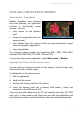
4. Select a radio button to display the current colour for a graphical part
of this item. The following graphical parts are available:
Sign colour - to set the icon colour (for example, the square icon of a
town).
Name colour - to set the text
colour, for example, the name of
a town or lake.
Number colour - to set the
code colour, for example, the
code number of a motorway.
Line colour - to set, for
example, the colour of the route or turn arrows.
Zone colour - to set, for example, the main colour of water.
Inner line colour - to set, for example, the main colour of a railway.
Outer line colour - to set, for example, the edge colour of a railway.
Background colour - to set, for example, the main colour of a
warning.
Foreground colour - to set, for example, the text colour of a
warning.
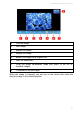
5. Use the red / green / blue sliders to choose a different colour. The
Previous colour box displays the colour currently used on the map.
The Current colour displays the colour that will be used after you
save your changes. Optionally, select the Reset icon to restore
the default settings for this item.
6. Save the new colour.
7. Save all changes in this section. Optionally, select the Reset icon
to restore all default settings for Legend.