
User manual
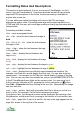
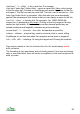
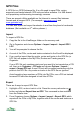
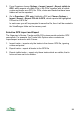
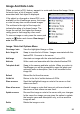
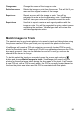
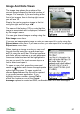
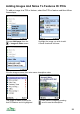
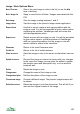

Image And Note Views
The image view shows the number of the
current image followed by the total number of
images. For example, if you are looking at the
first of six images, then in the top right corner
you will see 1/6.
Step to the next or previous image in the list
using the right and left keys ◄►.
The name of the feature, POI or route that the
image is associated with is displayed, followed
by the image’s name.
You can give shared images a rating using the
Rate Image menu item.
If you see an inappropriate image or note you can report it to us by using the
Report abuse menu item. If you see an error, you can report it to us using the
Report error menu item.
When viewing an image or note you can scroll
through the text using the up and down keys
▲▼ or using the scroll bar. If the text contains
web links, phone numbers or e-mail addresses
these are underlined and will be highlighted in
turn as you scroll. On touch screens tap on a
link to select and open it.
To open or use a link, press the cursor pad
centre or button and choose the appropriate
option from the menu. To open a web link,
choose Open link and the link will be opened
in your web browser application. If you
highlight a phone number, choose Call to
phone the number or one of the Create
message options to create text SMS, multimedia MMS or e-mail messages.
97