
User manual
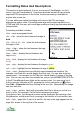
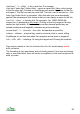
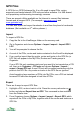
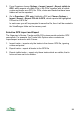
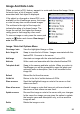
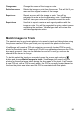
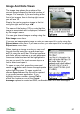
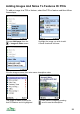
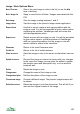

Image And Note Lists
When you select a POI, feature, waypoint or route and choose the Image / Note
list menu item, a list of images / notes
associated with that object is displayed.
If the object is a licensed or shared POI, so is
available on the ViewRanger server, the image
or note list may also contain shared images.
The red bars to the right of the image list
indicate the rating of a shared image. The
longer the red bar, the higher the average
rating given to that image by other users.
To view an image or note, press the cursor pad
centre or button and choose View image /
note from the menu.
Image / Note List Options Menu
View image / note View the highlighted Image or Note.
Note / Image list Swap to view the list of Notes / Images associated with this
feature/POI. Connects to the server.
Add image Associate an image with the selected feature/POI.
Add note Write a note and associate with the selected feature/POI.
Take photo & add Swap to the camera and take a photo. When you return to
ViewRanger you will be prompted to name the photo and
optionally enter a description, then it will be added to the
image list.
Refresh Reload the list from the server
Visible list Return to the list of visible features & POIs
Share on server Send the highlighted image or note to the server so that
others can see it.
Share all on server Send all image or notes that have not yet been shared to
the server so that others can see them.
Update on server Re-send the image or note to the server with your changes.
In the case of an image you are given the option to update
the image’s name and description only, or to re-send the
image as well.
Delete Delete the image or note.
95