
User manual

3. From Organizer choose Options > Import / export > Export visible to
GPX, which exports all visible POIs in My POIs, together with all visible
routes and tracks as a GPX file. POIs, routes and tracks that have been
hidden will not be exported.
4. Go to Organizer > POI sets. Highlight a POI set. Choose Options >
Import / export > Export POI set to GPX, which exports the highlighted
POI set to a GPX file.
In each case you will be prompted to name the file, then it will be created in
the ViewRanger folder on the memory card.
Selective GPX Import and Export
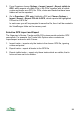
The Organizer’s Routes, Tracks and My POIs views provide selective GPX
commands. For example, the Tracks list’s Options menu contains an
Import/export sub-menu with 3 items:
1. Import tracks – imports only the tracks in the chosen GPX file, ignoring
routes and points.
2. Export tracks – export all tracks to the GPX file
3. Export visible tracks – export only those tracks which are visible, that is
have not been set to be hidden.
94