
User manual

Formatting Notes And Descriptions
This section is quite technical. It is not a core part of ViewRanger, so don’t
worry if you don’t understand it. It has been provided so that we can provide
improved POI descriptions in the future, but we are making it available for
anyone else to use too.
You can add some simple formatting and icons to the POI and image
descriptions and to notes. Formatting uses tags inside angle brackets in an
HTML and XML like way, with most tags needing a closing tag that starts with a
forward slash.
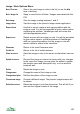
Formatting available includes:
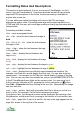
<br> - insert a paragraph break
<b>…</b> - show the text between the tags in
bold
<it>…</it> or <i>...</i> - show the text between
the tags in italic
<bg>…</bg> - show the text between the tags
in a larger font
<bu>…</bu> - display the text between the
tags in blue
<rd>…</rd> - display the text between the tags
in red
<gr>…</gr> - display the text between the tags in green
<yl>…</yl> - highlight the text between the tags in yellow
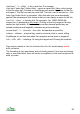
<im>…</im> - displays the icon with the name between the brackets. For
example <im>Flag</im> would display the 'flag' icon. You can also include a
repeat count – for example <im 5>Flag</im> would display 5 copies of the flag
icon. You can use your own icon names too, just put a small BMP/PNG/JPG file
in the E:/ViewRanger/Icons folder on the memory card. You can see a list of
built-in icons by choosing a POI, pressing the cursor pad centre or button,
then Edit > Properties and then looking at the icon list. Alternatively the image
can be a web link.
<an>...</an> – anchor. Used with a formatted text file to allow you to link to a
point in a file. For example, if a file file.txt contained an anchor
<an>anchor</an>, the text anchor would not be displayed. But opening a link
file.txt#anchor, would open file.txt, jumping to the location of <an>anchor</an>.
<pt>...</pt> – page title. If used in a text file, the text in the tags appears as the
page title, shown in the top bar of the screen.
91