
User manual
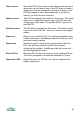

Filter
The Filter view is used to control which POIs and features are displayed in the
map and panorama. It allows you to switch whole categories and sub-
categories of POI on and off, and also to switch POI sets on and off individually.
The Filter view is accessed from the Organizer. Alternatively it can be reached
from the Panorama view’s display menu.
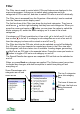
The first few lines of the Filter view show the top-level categories. They have a
small arrow on their right indicating that they have sub-categories. When you
press the cursor pad centre or button you are given the option to switch the
whole category off, switch the whole category on or to see its list of sub-
categories.
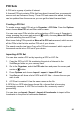
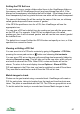
If a category or POI set is switched on it has a tick to its left and if it is off it
has a cross to its left. If a category’s sub-categories are a mix of on and off,
then the category is shown with a mixed on and off icon .
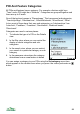
The Filter also lists the POI sets, which can be switched on and off individually.
Any POI sets you have imported or created are shown in the Filter view after
the categories, with their custom icon if available. Landing stages, geocaching
and NatTrust are POI sets in the example below. Press the cursor pad centre or
button to toggle a POI set or sub-category on and off.
The Search Results also appear as a separate POI set that can be switched on
and off.
When you press Back any changes are applied. The Options menu has an item
to discard any changes, and also has options to switch everything off and
everything on.
89
Some Places/areas sub-
categories are off and
some are on
The top 3 categories
have sub-category
lists
The lower 4 items are
POI sets, the final one
being the search
results