
User manual


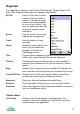
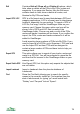


Larger text Use a larger font where possible. Phones normally use
fonts that are adjusted to their screen size but if you have
trouble reading text in ViewRanger then switch this on and
where space allows ViewRanger will use a larger font.
Button opacity On touch screen phones controls the opacity of the buttons
over the map.
Map
These settings affect the display of the map screen.
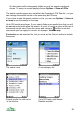
Night vision Switch this on at night for the screen to drawn with a red
hue, to help preserve your night vision.
Auto rotate map When this is switched on, the map will rotate by multiples of
90 degrees to best match your heading.
View layout Switch between normal and full screen.
Show location bar Switch the location bar on and off – this is the small bar
showing coords at the top of the screen.
Show scale Switch the scale bar on and off.
Show navi arrow Controls the navigation arrow, shown when following a
route or navigating to a point.
Show pano
viewpoint
Display the panorama viewpoint and direction veins on the
map.
Show compass If the phone contains an electronic magnetic compass,
control whether the compass is displayed on the map.
Account
Prompt for billable
events
When switched Every time you will be asked for permission
before any operation that may incur a charge to your phone
bill such as Internet access or SMS creation. When set to
First time you are only asked when an Internet connection
is first needed. When set to Never you will (almost) never
be asked to confirm the internet connection.
User name Your user name for the ViewRanger server
Password Your password for the ViewRanger server
Email Address Your e-mail address for the ViewRanger server
Image / Note Credit The accreditation that will be used for images and notes
74