
User manual




Navigation
ViewRanger will help you navigate to a point or follow a route. You need to be
connected to a GPS receiver and then choose the point or route you wish to
use.
To follow a route or navigate towards a specific mark, point of interest or
waypoint:
1. Select the route, POI, Mark or Waypoint that you wish to use. You can do
this through the Organizer or by using the cursor keys whilst in Select Mode
in Map view, or on a touch screen phone by touching the object.
2. Once the point of interest or waypoint is selected, press the cursor pad
centre or button to show the context menu and choose Navigate to or
Follow route.
3. When you follow a route, ViewRanger
automatically works out which waypoint you
should head to next. The controls to override
this choice are described on page 63.
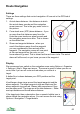
Navigation information can be viewed in the Trip
view, as described above, or over the colour map.
To have the navigation arrow over the top left hand
corner of the map choose Options > Organizer >
Settings > Map > Show navi arrow.
Navigation Arrow
The arrow indicates the direction you should travel
relative to your current direction of travel. Aim to
keep it pointing straight upwards.
The colour of the arrow varies:
• Red when you are close to the target (red for stop)
• Blue if you are too far off route (blue for getting
cold)
• Green if you are on route and not yet at the target
(green for go)
62