
User manual
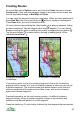
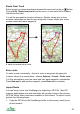

Set position Set the position of a waypoint by typing in the co-ordinates.
Show / Hide Hide the route, or show it again.
Lock / Unlock Lock the route so it cannot be edited.
Properties Show the Properties view in which you can edit the name,
colour, description and list of links. For waypoints you can
choose the icon.
Reverse route Reverse the order of the waypoints
Extend route Extend the route by adding a new point after the last point.
Add image Select an image stored on the phone and add it to the route
or waypoint’s list of images.
Take photo & link Swap to the camera and take a photo. When you return to
ViewRanger by exiting the camera, the photo is added to
the list of images.
First / Last point Select the first or last point in the route
Next / Prev point Select the next or previous point in the route. In the Map
view these have short cuts of 6 and 4. Pressing 5 de-
selects the waypoint, but leaves the route selected.
Insert before / after Insert a waypoint before or after the selected waypoint.
Insert Insert a waypoint in the track at the current location
Drop point Remove the waypoint from the route, converting it to a
standalone POI.
Delete Delete the route.
Delete point Delete the point from the route.
Export item to GPX Export the route to a GPX file, for import into other apps.
You can create and edit routes within ViewRanger. With a little practise and use
of the short cuts, this can be very effective.
There are two key tips when using keypad phones:
● When creating a route use the delete key C to delete the last placed
waypoint to undo a mistake.
● Use the 4 and 6 keys to select the previous and next waypoints, both when
reviewing and editing the route.
58