
User manual
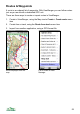
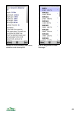
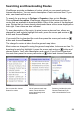
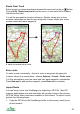

2. Go to the Organizer by choosing Options > Organizer
3. In the Organizer select Options > Import GPX / LOC
4. Choose your GPX file
Transparent Routes
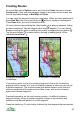
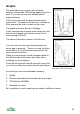
You can make routes partially transparent. This allows
you to see much of the map detail through the route.
To set the opacity go to Settings > UI > Route opacity
and adjust the slider. This grab shows a route that has
an opacity of 20%, so is 80% transparent.
This feature is not available on S60 2
nd
edition phones.
Editing Routes
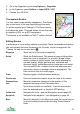
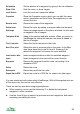
A wide range of route editing options is provided. These commands and options
can be accessed from the Organizer’s list of routes, the list of waypoints, the
‘Choose’ list and the context menu .
Waypoints Show the list of the route’s waypoints.
Details Show the Details panel. This shows a range of information
about the route or waypoint. For a route it shows: name;
status; number of points; length; real length (allowing for
ups and downs); height gain and loss; maximum and
minimum height; textual description; image and note count.
You can select links, numbers and e-mail addresses and
open them, phone or message them as appropriate. The
links can be to files or to web pages.
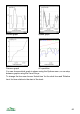
Graph Display a graph of altitude versus distance.
View on map Pans and zooms the map to show the route at the centre.
Panorama from
here
Move the panorama viewpoint to the location of this
waypoint and swap to the Panorama view.
Up to three variants are available – from the map centre,
from the selected point, or from the GPS position.
Follow route Navigate the route – see the Navigation section page 62.
Navigate to Navigate to the waypoint – see Navigation on page 62.
Move Move the waypoint in the Map view using the cursor keys or
on touch screen phones touch and drag. Press Done to
finish.
57