
User manual

Creating Routes
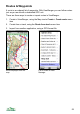
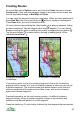
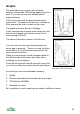
Go to the Map view’s Options menu, and from the Create sub-menu choose
Create route. A box and new waypoint appear in the centre of the screen and
the soft key labels change to New Wpt and Done.
You can move the waypoint using the cursor keys. When you have positioned it,
press New Wpt, the cursor pad centre or button to create a new waypoint.
Press Done when you have finished the route.
On touch phones tap and drag the offset handle to place a waypoint, letting
go when positioned. Tap and drag to place another waypoint. You can switch
between moving the point (or adding new points) by tapping the pan button
Tap the point button to switch back to moving or adding points. When
complete press Done .
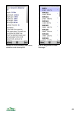
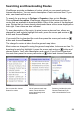
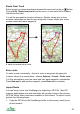
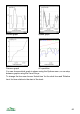
Creating a route within A route with 10 waypoints
ViewRanger
If you place a point on top of an existing waypoint in the route, the existing
waypoint will be reused, so if your route partly retraces its steps you do not get
duplicate waypoints. The second screen grab below shows a route that has
common waypoints at the start and end, then a loop, with a short diversion
again with a shared waypoint.
Practically speaking, on the touch screen version, it is difficult to place a
waypoint exactly on top of another waypoint as there is no tolerance and
therefore must be pixel perfect to re-use waypoint.
Press the delete key C or bin button to delete the last waypoint that was placed.
55