
User manual

Searching and Downloading Routes
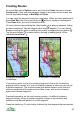
ViewRanger provides a database of routes, which you can search using an
Internet connection. You can read a description of each route and then, if you
wish, can download the route.
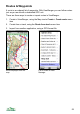
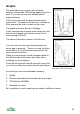
To search for a routes go to Options > Organizer, then go into Routes.
Choose Search for routes. ViewRanger connects to the server and lists the
routes that are available to download within 20km of the centre of the displayed
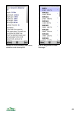
map. Routes that you have already downloaded have a blue arrow displayed on
their right. Free routes are also indicated.
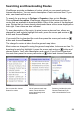
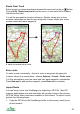
To see a description of the route, its price (some routes are free, others are
charged for) and a photo highlight the route, press the cursor pad centre or
button and choose Details.
If you would like to download the route then press the cursor pad centre or
button and choose Download.
The charge for routes is taken from the general map token.
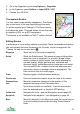
Most routes are charged for using the general map token, but some are free. To
download a route first highlight it, press the cursor pad centre or button and
choose Details. You'll see a description and a price. If you'd like to download
the route then press the cursor pad centre or button and choose Download.
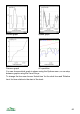
Go to routes list, choose List of routes around map Summary includes the price.
Search for routes centre. Route with blue Choose Download if you
arrow has already been wish to download the route.
downloaded
54