
User manual


Processing a Track
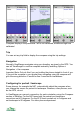
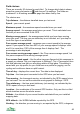
When you select a track and press the cursor pad centre or button, a context
menu is shown. There are two useful options to reduce the memory that a track
uses:
1. Remove spikes – removes any track points whose speed is much greater
or much less than the preceding and following points. These can occur due
to GPS glitches, for example walking under a dense tree canopy.
2. Reduce – halves the number of points in the track by removing every other
point.
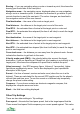
Additionally Route from track creates a route that matches the track. It
simplifies the number of points to make the route manageable. The track is not
deleted.
Exporting a Track
You can export tracks that you have made from ViewRanger for use in other
mapping applications. ViewRanger exports its tracks in the commonly used
GPX format.
To export a track go a list view and highlight the track, or go to the Details view
for the track. Press the cursor pad centre or button and choose Export item
to GPX. You will be prompted to enter a filename and a GPX file containing the
track will be created in the memory card’s ViewRanger folder.
You can also use the Organizer’s Import / Export menu to export (and import)
multiple tracks.
Time at a point
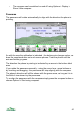
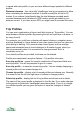
If you move the select cursor over the track the
third line of text on the screen shows the time that
you were at that point of the track and your speed
at that point.
50