
User manual


is saved with each profile, so you can have different target speeds for different
profiles.
Distance tolerance – this value tells ViewRanger how big a movement to allow
when calculating the distance travelled. It should normally be left set to 50
metres. If you reduce it significantly then the total distance recorded would
increase because small variations in GPS location would get added to your
distance moved. If you have a poor GPS you might need to increase this value.
Trip Profiles
You can save combinations of layout and field choice as ‘Trip profiles’. You can
swap between different profiles by pressing the left and right keys or buttons, or
by using 4 and 6.
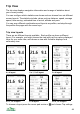
For example, you could have a display with speed, distance, navigation arrow
and time displayed in 4 large boxes as your main screen that you can glance at
while biking or walking. On a second screen have figures such as average
speed and estimated time of arrival displayed in 8 smaller figures, which you
look at occasionally when it is convenient to change screens. But it is
completely up to you.
Four default profiles are provided, but these can be deleted.
Profiles are manipulated using the Options > Trip profiles sub menu:
Save trip profile as – saves the current combination of layout and fields as a
new trip profile. You will be prompted to give it a name.
Save trip profile – re-save the current trip profile. You are already displaying a
named profile but have made changes to it.
Choose trip profile – display a list of named profiles and choose one. Normally
it is easier to use the left and right keys or buttons to change profiles.
Delete trip profile – display the list of trip profiles and choose one to delete.
The name of the current profile is displayed in the title bar. If you make changes
to the layouts or fields then ViewRanger remembers these. If you try to change
to a different profile you are given the option to save the changes or discard
them.
47