
User manual


You may prefer to tell ViewRanger to use just one orientation - do this using the
screen orientation setting in the UI section of settings.
Compass calibration
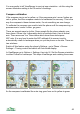
If the compass ring is red or yellow, or if the panorama axis / arrow / button are
red or yellow, then the compass needs to be calibrated for accuracy. This is the
way the compass in these devices works, it's not something we can change.
To calibrate the compass you need to twist the phone until the compass ring, or
panorama axis / arrow / button, go green.
There are several ways to do this. Some people flip the phone sharply over
three times. Others turn it alternately about a horizontal axis, then a vertical
axis. There are some You Tube videos which show these techniques.
N97 note: It is very hard to make the N97 calibrate if its screen is set to
automatically rotate to landscape when you put the phone on its side. There are
two solutions:
Switch off this feature using the phone's Settings - go to Phone > Sensor
Settings > Turning control and switch off Auto-rotate display.
In ViewRanger go to Options > Settings, then into UI. Set the Screen orientation
to either Portrait or Landscape. This stops ViewRanger auto-rotating the screen.
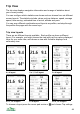
As the compass is calibrated the outer ring goes from red to yellow to green
43