
User manual
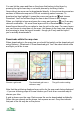
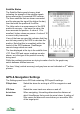


You can list the maps and tiles on the phone that belong to that layer by
pressing the right cursor key or on touch phones by touching it twice.
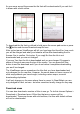
Items without an arrow can be downloaded directly. In the picture above are two
sections of Miniscale map and a POI set containing nature reserves. To
download an item highlight it, press the cursor pad centre or and choose
Download. You'll be told how large the item is and if there is any charge.
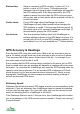
When you highlight a layer and press the cursor pad centre or you'll see any
relevant commands – for some there layers will be a Download item, for grid
based layers there will be an option to view its grid on the map. For many layers
you can choose to view them on the map - this swaps to the map view, panning
and zooming to show the layer's bounds - though you'll only see the layer if
you've actually downloaded it.
Downloads within the map view
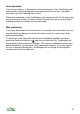
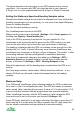
When downloading in the map view you should first switch on the download grid
using Options > Downloads > Show download grid. You'll be asked which scale
and layer you'd like to use.
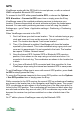
Choose a grid scale The download grid over a The grid's colour coding
reference map
Note that the grid being displayed may not be for the map scale being displayed
- if you are choosing maps of a new location you'll look at an overview map to
choose your tiles.
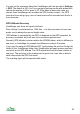
A grid is drawn over the map. Each square tile can be downloaded individually.
Green tiles are already on the phone, red squares are not. Grey tiles indicate
that part of the tile may be on the phone.
31