
User manual


Map Downloads
You can download maps and other files within ViewRanger.
Quick summary
This is a quick summary of the download functionality. Read the following
sections for a more detailed description and screen grabs.
• To see which map layers and other items are available to download, go to
Options > Organizer and swap into the Downloads section. Answer yes
when prompted to update the list.
• To download a plain item like a POI set, highlight it in the list, press the
cursor pad centre or and choose Download.
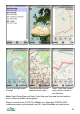
• To download a map use the download grid in the map view. To switch this
on choose Options > Downloads > Show download grid.
• Green tiles are already on the phone, red tiles are not.
• To download the central tile, which has a bold outline, press the cursor pad
centre or and choose Download map tile here.
• You are always told how large the download will be and what you will be
charged, so you can cancel before incurring any charge or cost.
Downloads section of Organizer
To see the list of maps, POI sets and other materials that are available to
download go to Options > Organizer, then go into the Downloads section. (Or
from the map view choose Options > Downloads > Downloads.)
You'll be asked if you wish to update the list of available items - answer yes and
ViewRanger will connect to the Internet to update the
list. This uses just a few kilo bytes of bandwidth.
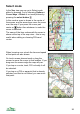
The downloads list is split into individual countries
and each country has a list of layers. To list a
country's layers highlight the country and press the
right cursor key, or on touch phones touch the item
twice.
Layers which have a arrow on their right are maps
split into a grid of tiles, which you'll normally
download from the map view using the grid,
described later. In the picture on the right there are
two such layers - 1:50,000 Landranger and 1:25,000
Explorer map.
30