
User manual


Free Online Mapping
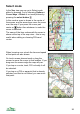
ViewRanger can display free online mapping from OpenStreetMap and Open
Cycle Map. This mapping is downloaded as it is needed. It is cached on the
phone. If the mobile network is not available, or if you choose to work offline,
then ViewRanger will display as much as it can using the cached tiles.
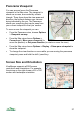
List the maps: To see the available online map layers go to Options >
Organizer, then into Maps, then into "Online mapping". Agree to update the list
of maps. You'll see two or more layers listed.
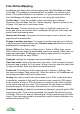
View the map: To view a layer tap on it twice, or highlight it and press the
cursor pad centre, and choose View. ViewRanger will go back to the map view
and will start downloading maps.
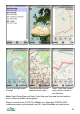
Interact with the map: As you pan around the map or zoom in and out more
map tiles will be downloaded.
Change to another map layer: To change to another map layer go to Options
> Map source and select another map. Premium map swaps back to the more
detailed paid for topographic maps.
Online / Offline: Use Options > Map source > Online or Offline to go on and
offline. When online maps are downloaded as they are needed. When offline no
maps are downloaded, ViewRanger only display maps cached on the phone.
While offline the title bar says "Offline".
Copyright: displays the copyright and license details for the map.
Clear map cache: deletes old map tiles in the cache. You'll be asked to choose
a minimum age to delete. So if you enter 14 days, then only map tiles older than
14 days are deleted. Enter 0 to delete all cached map tiles.
Cache size: To set the size of the map cache go to Options > Settings, then
into User and change "Map cache size". When the cache is full ViewRanger will
throw away the oldest map tiles to make space.
Overlay: the overlay used for the online maps, that is POIs, routes and tracks,
is completely separate to that used for premium maps (except for USA maps).
So for example, a route or POI set shown on a premium map, won't be visible
on the online map and vice versa. This is because the two maps use different
coordinate spaces. We will remove this restriction in a future release.
Coordinate display: by default coordinates are displayed using the global UTM
coordinate system. To see local coordinates, for example GB national grid, go
to Settings, then into UI, and set "National grid" to the coordinate type you'd like
to see. If you view maps outside the area that is valid for those coordinates, the
software will revert to UTM.
28