
User manual


Panorama Viewpoint
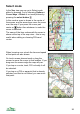
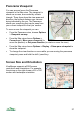
You can see and move the Panorama
viewpoint in the Map view. The viewpoint is
shown as a cross, surrounded by a black
triangle. Three lines show the view span and
direction, the furthest distance you can see
being indicated by the arc. The Panorama
shows you everything that can be seen from
your current viewpoint in that ‘pie’ section.
To move or see the viewpoint you can:
• From the Panorama view, choose Options
> Viewpoint on map
• From the Map view choose Options >
Cursor keys > Move pano viewpoint (to
move the position) or Set pano direction (to rotate or zoom the view)
• From the Map view choose Options > Display > Show pano viewpoint to
show the viewpoint.
• To change the view direction or zoom while you are moving the panorama
viewpoint, press and hold the shift / pencil key.
Screen Size and Orientation
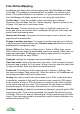
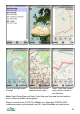
ViewRanger supports all S60 screen
resolutions and orientations. For example,
the picture on the right shows a 416 x 352
screen with landscape orientation.
27