
User manual


Select mode
In the Map view you can go to Select mode
either by pressing 1 or by choosing Options >
Cursor keys > Select or on touch phones by
pressing the select button .
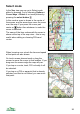
In this mode a cross is shown in the centre of
the screen, and the arrow keys move the cross
over the map. If you press the cursor pad
centre or button then whatever is under the
cursor is selected.
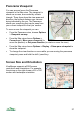
The name of the item underneath the cursor is
shown at the top of the map view – this is very
useful when editing or choosing POIs and
routes.
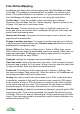
When hovering over a track the time and speed
at that point are also shown.
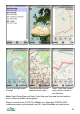
On touch screen phones touch or drag the
screen to move the cursor to that location. If you
drag near the screen edge the map will pan.
If you tap on a route, track, POI or buddy it will
be selected.
If you tap on a POI or waypoint that is already
selected, and that is not locked, you can move
that point.
26