
User manual

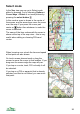

Context Menu (cursor pad centre or button)
The commands in this menu vary depending on what is selected. Some of the
commands are:
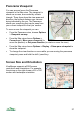
Panorama from here Swaps to the Panorama view, moving its viewpoint to be
from the map centre. Up to three variants are available –
from the map centre, from the selected point, or from the
GPS position.
Choose Displays a list of selectable objects shown on the map, so
you can quickly see their names and choose one.
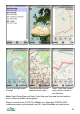
Map scale & zoom > ViewRanger supports multiple map scales. It displays one
scale at a time. This sub-menu contains options to choose a
different scale map from those available at the current
location. It also contains options to zoom in and out of the
map and to switch auto scale on and off.
Scale in Use a map with a smaller scale – for example, if you are
currently viewing a 1:50,000 map, then this command shows
the 1:25,000 map instead (if you have that scale installed).
This item only appears if there is a map of a smaller scale
available at the current location.
Scale out Use a map with a larger scale – for example, if you are
currently viewing a 1:50,000 map, then show the Miniscale
1:1-million map instead. This item only appears if there is a
map of a larger scale available at the current location.
Map list Show the list of installed maps. Highlight one using the
cursor keys or by touching. Press the cursor pad centre or
button to show the context menu, choose View and your
chosen map will be displayed.
Auto scale on / off Switch auto scale on and off. If auto scale is switched on,
then as you zoom in and out ViewRanger will show the most
appropriate scale of map available at the current location. If
you are viewing a 1:50,000 map then zooming in will swap to
a 1:25,000 map. Zooming out several levels swaps to the
1:1 million map.
25