
User manual


GPS & Location >
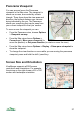
Use GPS Position ViewRanger will use the location given by the GPS. In the
map view this locks the map to the GPS and in the
panorama view it updates the viewpoint to the GPS
position.
Connect to GPS Connects to a GPS.
Connect New GPS Only available on 2
nd
edition phones. Use this option if you
have previously used a different GPS receiver and need to
use a new one.
Disconnect from
GPS
Disconnects from the GPS.
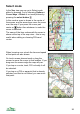
Satellites Shows the Satellites graph, which indicates the accuracy of
the GPS position.
Search Shows the search view, from which you can search POI
sets, the gazetteer and the ViewRanger server.
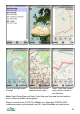
Manual Location Goes to a panel where you can manually specify a location
Add Bookmark Creates a new Location Bookmark in the Bookmark list
Bookmark List Shows the list of Location Bookmarks you have saved,
allowing you to move to a favourite location
Phone >
Lock Keypad Locks the keypad so that accidental pressing of keys
doesn’t affect the application or phone. You can also lock
the keypad by pressing the power key briefly and choosing
lock keypad.
Disable/Enable
screensaver
Stops / re-enables the screensaver. Useful if you don’t
want the phone handset screen to dim when using
ViewRanger to navigate. But battery life will be reduced!
E-mail message
Text message
Multimedia
message
Creates a message. If you have connected to a GPS and
the GPS has or had a valid position fix, then the last valid
co-ordinates, speed and heading appear in the body of the
message, along with the time and date of that reading. You
can delete them if you wish.
Clear Cache Clears ViewRanger’s image and note cache on your phone.
The cache uses up to 0.5Mb on the memory card.
Disconnect Internet Closes ViewRanger’s connection to the Internet.
Check with server Contacts the ViewRanger server, reports the server status
23