
User manual


Bookmarks
A bookmark is a location that has been saved with a name and its time of
creation.
To create a bookmark choose GPS & location > Add bookmark. You will be
prompted to name the bookmark. If you are within a point-of-interest, for
example on a hill, that name will be provided as the default, so you can create
bookmarks without typing.
To see the list of bookmarks choose GPS & location > Bookmark list or
Organizer > Bookmarks. The list contains all the bookmarks that you have
created and also contains the default locations for each of your licensed POI
sets.
Use the up and down keys ▲▼ to highlight a bookmark. You can then go to
that location by pressing the cursor pad centre or button, or by using the
menu’s Go to item.
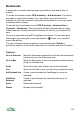
The menu contains various operations, summarised below. Details is
particularly useful as it shows the bookmark’s co-ordinates and time of creation.
Options>
Go to on Panorama Move the Panorama viewpoint to be at the saved bookmark
location and go to the Panorama view.
Go to on Map Move the Map centre to be at the saved bookmark location
and go to the Map view.
Details Show the location and creation time of the bookmark
Find Show the find field so you can search for a particular name.
Add Bookmark Here Create a new bookmark at ViewRanger’s current co-
ordinates.
Add Manual
Bookmark
Create a new bookmark by manually entering its co-
ordinates.
Delete Delete the bookmark.
Rename Rename the bookmark.
119