
User manual


Add a tracker - using an SMS message
If you have received an SMS message from the tracker then you can use that
message to add the tracker. To do this:
● Go to the tracker list using Options > Beacon & tracker > Buddy &
tracker list
● Choose Options > 'Read inbox - choose'
● This shows a list of all messages in your phone's inbox. Choose one.
● ViewRanger will read the message and if it is from a tracker that it has
not already got listed will ask if you'd like to add it.
Locate a tracker
To request the location of a tracker:
● Choose Options > Beacon & tracker > Locate now
● Highlight the tracker you'd like to see the location of and press the
cursor pad centre or button
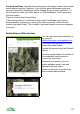
● Once ViewRanger receives a reply it will show the tracker on the map
Watch a tracker
To watch a tracker, that is be sent regular updates on its location:
● Choose Options > Beacon & tracker > Watch / track
● Highlight the tracker you'd like to watch and press the cursor pad centre
or button
● You'll be asked how many times you'd like to receive messages. For
example, if you enter 8 you'll receive 8 notifications. In the case of a
Globalsat tracker, if you enter 0 it will send messages indefinitely until
you stop it it.
● You'll be asked to enter the frequency between messages, which is set
in minutes.
● When ViewRanger receives messages it will show the tracker on the
map
Other Tracker Commands
The Options menu contains other useful commands:
Add buddy or tracker - add a new buddy or tracker.
115