
User manual
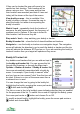

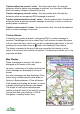

If they can be located the map will move to be
centred on their location. Their location will be
shown using an icon. Their name and the time
their location was recorded (and date if it was not
today) will be shown at the top of the screen.
View buddy on map – this is available if the
buddy's location is known. It moves the map to
show the buddy, but without re-requesting the
buddy's location.
Watch / track – repeatedly check the location of
someone. As with beacon repeat, the frequency of
updates is set in Options. If the map is locked to
their location it will move as they do.
Stop watch / track – stop watching your buddy or tracker.
Buddy & tracker list – show the list of stored buddies and trackers.
Navigate to – use the buddy or tracker as a navigation target. The navigation
arrow will indicate the direction to go to reach the buddy or tracker and the trip
view will indicate the distance, ETA and so on. If you are watching the buddy or
tracker's location then your target will update as they move.
Buddy & Tracker List
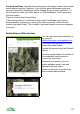
Any buddies and trackers that you are add are kept in
the buddy and tracker list. You can access this list
through the Organizer, or through the Map view’s
Options > Beacon & tracker > Buddy & tracker list.
Icons are automatically associated with a buddy by
name - for example, if your buddy is named "mike"
and you have an icon named "mike" then that icon will
be used. If there is no icon of the same name then a
numbered icon is used.
You can change the icon by going to the buddy list,
highlighting the buddy, pressing the cursor pad centre
or button and choosing Edit.
The tick or cross in front of a buddy’s name indicates whether they are enabled
for the purposes of the list. To switch this on and off highlight the buddy, press
the cursor pad centre or button and choose On or Off.
To modify a stored buddy, highlight the buddy, press the cursor pad centre or
button and choose Edit.
111