
User manual
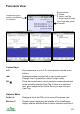


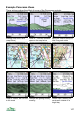

Panorama View
Cursor Keys
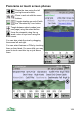
▲▼ Zoom panorama in or out. On touch phones use the zoom
buttons
◄► Rotate panorama one step left or right (rotate mode)
Change View Tag selection (select / single mode)
OK Show the context menu, which contains commands relevant
to the currently selected View Tag. If there is no selected
item, goes straight to the Visible list so you can choose a
View Tag.
Options Menu
Visible List Displays a list of the POIs in the current Panorama view
Where am I? Shows a panel displaying the location of the ViewRanger
display and the altitude at that location; direction and field of
101
Mode Indicator:
R: Rotate
S: Select ViewTag
1: Single select & rotate
Direction
bearing
View Tags label points
of interest
Tree icon indicates
woodland
Water is shaded blue
Water is shaded blue
Location bar gives
position and altitude
of viewpoint
Points of interest drawn
with custom icons