
User manual





ROUTE 66 Mobile 2006 Symbian UIQ
13
Select Navigate to if you want to start navigating with your Bluetooth GPS receiver to a single destination
without any intermediate waypoints.
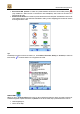
When you are in the Navigate via screen, tap Navigate via and select:
• Add waypoint to search for an address, point-of-interest, favourite, contact or recent destination
(see Add waypoint below) and add it as a waypoint to your route.
• Start navigation to start navigation to the waypoint(s) in the list (not enabled when navigation is
already in progress).
• Route type > to select the type of the route.
1. Fastest / Car to set the fastest route by car as the type of the route.
2. Shortest / Car to set the shortest route by car as the type of the route.
3. Fastest / Lorry to set the fastest route by lorry as the type of the route.
4. Shortest / Lorry to set the shortest route by lorry as the type of the route.
5. Pedestrian to set the route for pedestrians as the type of the route.
• Save waypoints to save the waypoints of the route for later use.
• Load waypoints to load the waypoints of the route that you have saved before.
When you are in the Navigate via screen, tap Edit and select:
• Delete to delete the selected item from the list.
• Delete all to delete all items in the list.
• Move up to shift the selected item one position upward in the list.
• Move down to shift the selected item one position downward in the list.
Add Waypoint
When you are in the Add waypoint screen, tap:
• Locations to search for an address, point-of-interest or the address of a contact and add it as a
waypoint to the route.
• Favourites to add a favourite as a waypoint to the route.
• History to add a recent destination as a waypoint to the route.
• Contacts to add an address of a contact as a waypoint to the route.
• Current position to add the current position on the map as a waypoint to the route.