FCC STATEMENT This device complies with Part 15 of the FCC Rules. Operation is subject to the following two conditions: (1) This device may not cause harmful interference, and (2) This device must accept any interference received, including interference that may cause undesired operation. Note: This equipment has been tested and found to comply with the limits for Class B digital devices, pursuant to Part 15 of the FCC rules.
READ THIS FIRST Trademark Information Microsoft® and Windows® are U.S. registered trademarks of Microsoft Corporation. Pentium® is a registered trademark of Intel Corporation. Macintosh is a trademark of Apple Computer, Inc. SD™ is a trademark. Other names and products may be trademarks or registered trademarks of their respective owners. Product Information Product design and specifications are subject to change without notice.
SAFETY INSTRUCTIONS Read and understand all Warnings and Cautions before using this product. Warnings If foreign objects or water have entered the camera, turn the power off and remove the battery. Continued use might cause fire or electric shock. Consult the store of purchase. If the camera has fallen or its case has been damaged, turn the power off and remove the battery. Continued use might cause fire or electric shock. Consult the store of purchase. Do not disassemble, change or repair the camera.
Cautions Insert the battery paying careful attention to the polarity (+ or –) of the terminals. Inserting the battery with its polarities inverted might cause fire and injury, or damage to the surrounding areas due to the battery rupturing or leaking. Do not fire the flash close to anyone’s eyes. This might cause damage to the person’s eyesight. Do not subject the LCD monitor to impact. This might damage the glass on the screen or cause the internal fluid to leak.
Notes on Battery Usage When you use the battery, carefully read and strictly observe the Safety Instructions and the notes described below: Use only the specified battery. Avoid using the battery in extremely cold environments as low temperatures can shorten the battery life and reduce camera performance. This low temperature will also influence Alkaline battery performance, therefore Ni-MH rechargeable battery is highly recommended.
CONTENTS INTRODUCTION .............................7 MOVIE MODE ...............................28 Overview .............................................. 7 Package Contents ............................... 7 Recording Movie Clips .......................28 Playing Back Movie Clips....................28 GETTING TO KNOW YOUR CAMERA .........................................8 PLAYBACK MODE - ADVANCED FEATURES ...................................29 Front View ...........................................
INTRODUCTION Overview Thank you for purchasing the new digital still camera! Equipped with a 7.0 Megapixels CCD sensor, your camera delivers high quality, 3072 x 2304 resolution images. Package Contents Carefully unpack your kit box and ensure that you have the following items. In the event that any item is missing or if you find any mismatch or damage, promptly contact your dealer.
GETTING TO KNOW YOUR CAMERA Front View 1 2 3 4 5 6 7 8 9 1. 2. 3. 4. 5. EN-8 Shutter release button Self-timer LED Power switch Mode dial Microphone 6. 7. 8. 9.
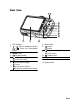
Rear View 1 2 3 4 5 6 7 8 9 10 11 14 13 1. LED indicator 2. / Zoom in (telephoto) button / Zoom out (wide-angle) button 3. MENU button 4. Playback button 5. Arrow button (Up) Self-timer button 6. Arrow button (Right) Focus 7. Arrow button (Down) Exposure compensation button 12 8. Strap holder 9. button button 10. Arrow button (Left) Flash button 11. Delete button 12. Battery / card cover 13. LCD monitor 14.
Mode Dial You can select from seven shooting modes and setup mode according to shooting conditions to achieve the desired effect. 8 1 7 2 6 3 5 4 Mode Description 1. Program Select this mode to permit the ISO, EV, and White Balance to be set manually. 2. Portrait Select this mode to make people stand out with the background out-of-focus. 3. Landscape Select this mode to take phototgraphs of distant scenery or landscapes. 4. Sports Select this mode to shoot fast moving objects. 5.
LCD Monitor Information 1 2 3 4 5 6 Camera Mode 1. Mode indication [ ] Program Mode [ ] Portrait Mode [ ] Landscape Mode [ ] Sport Mode [ ] Night Mode [ ] Movie Mode [ ] Auto Mode 2. Flash mode [ ] Auto [ ] Red eye [ ] Flash on [ ] Flash off 3. Capture mode [ ] Single [ ] Burst [ ] AEB [ ] 2 sec. Self-timer [ ] 10 sec. Self-timer [ ] 10+2 sec. Self-timer 4. Focus mode [ ] Standard [ ] Macro [ ] Infinity 5. Possible number of shots 6. Memory status : Built-in memory (without card) : SD memory card 7.
Movie Mode Movie mode Flash mode Recordable movie time available Memory status Battery power and AC adapter indicator 6. Focus area 7. Zoom bar 1. 2. 3. 4. 5. 1 2 3 4 00:49 5 6 7 Image Playback Playback mode Number of image Memory status Battery power and AC adapter indicator 5. Index number of total number 6. DPOF indicator 7. Protect indicator 8. Date 9. Time 10. EV compensation 11. ISO sensitivity 12. White balance 13. Image quality 14. Recorded pixels 1. 2. 3. 4.
PREPARING THE CAMERA Preparation 1. Attach the camera strap. 2. Open the battery/SD memory card cover. 3. Insert the batteries with correct orientation as shown. 4. Insert an SD memory card (Optional). The camera has 22MB internal memory for image storage but you can load an SD memory card to expand the camera’s memory capacity. Be sure to format the memory card with this camera before its initial usage. 5. Close the battery/SD memory card cover and make sure it is locked securely.
LED Indicators Indicators State Description/Activity LED indicator Solid green The digital camera is powering up. Solid green The digital camera is ready to record images (or movies). LED indicator Blinking red and green USB communication/transfer in progress LED indicator Blinking red Charging the flash. Self-timer indicator Blinking green The self-timer function is activated.
GETTING STARTED Turning the Power On/Off Press the power switch until the digital camera turns on. To turn the power off, press the power switch again. Power switch Choosing the Screen Language Follow the steps below to choose the desired language. 1. Rotate the mode dial to and turn your camera on by pressing the power switch. 2. [Set-up1] is displayed. 3. Use the four-way controller (T) to select [Language], then press the button. 4. Use the four-way controller (ST) to select the language you want.
Setting the Date and Time Follow the steps below to set the date display style, current date and time. 1. Rotate the mode dial to and turn your Date te & Tim Time camera on by pressing the power switch. 2. [Set-up1] is displayed. 01 / 01 / 2006 2007 3. Use the four-way controller (T) to select [Date & Time] and the four-way controller (WX) to switch the date types, then press 00 : 00 the button. 4. Press the four-way controller (WX) to Select : select Day, Month, Year and Time fields.
PHOTOGRAPHY MODE Shooting Images 1. Rotate the mode dial to , , , , , or and turn your camera on by pressing the power switch. 2. Compose the image on the LCD monitor screen so that the main subject is within the focus frame. 3. Press the shutter release button down halfway to focus the image. When you press the shutter release button down halfway, the camera’s Auto Focus feature automatically focuses the image. The focus frame turns green if the subject is in focus.
Setting Image Resolution and Quality As you get to know the digital camera, you can set the image resolution (number of vertical and horizontal pixels) and image quality (compression ratio) based on the types of images you want to shoot.These settings affect the number of images that can be stored in the internal memory, or on an SD memory card. Higher resolution and higher quality images provide finer detail but cause the images’ file size to be larger.
Using the Zoom Function This camera is equipped with 3x optical zoom. The lens moves during the optical zoom photography, allowing you to capture telephoto and wide-angle shots. By using the optical zoom function, images appear closer by pressing the button, or smaller away by pressing the button. The zoom bar indicates the current level of 3 magnification. When the digital zoom is within 3x magnification, the zoom bar is within the optical zoom range.
Using the Flash The flash is designed to function automatically when lighting conditions warrant the use of flash. You can take an image using a desired flash mode to suit your circumstances. 1. Rotate the mode dial to , , , , , or . 2. Press the power switch to turn on the power. Flash lash Mode Mod 3. Press the four-way controller (W/ ). The Aut Auto uto flash mode changes each time the button is pressed. You can also change the setting using the four-way controller OK : (ST). 4.
Setting Focus Images can be captured with the focus determined automatically using auto focus. You may over-ride the auto focus and specify [ ] macro or [ ] infinity. 1. Rotate the mode dial to , , , , , or . 2. Press the power switch to turn on the power. 3. Press the four-way controller (X/ ). The focus mode changes each time the button is pressed. You can also change the setting using four-way controller (ST). 4. Press the button to confirm the setting. 5.
CAPTURE MODE Burst This mode is used for continuous shooting. 3 pictures are taken continuously once the shutter release button is pressed. Secure the camera to a tripod or place it on a stable surface. 1. Rotate the mode dial to , , , , , or . 2. Press the power switch to turn on the Captu pture e Mod Capture Mode power. Bu Burst 3. Press the four-way controller (S/ ) and use (S) to select [Burst]. You can also OK : change the setting using four-way controller (WX). 4.
Self-Timer The self-timer can be used in situations such as group shots. When using this option, you should either mount the camera on a tripod (recommended) or rest it on a flat, level surface. 1. Secure the camera to a tripod or place it on a stable surface. 2. Rotate the mode dial to , , , , , or . Captu Capture pture e Mod Mode 3. Press the power switch to turn on the 2 sec. Self-timer power. 4. Press the four-way controller (S/ ) and use (S) to select your desired self-timer OK : mode.
Adjusting the Exposure (EV Compensation) You can manually adjust the exposure determined by the digital camera. Use this mode when the proper exposure cannot be obtained, for example, when the contrast (difference between bright and dark areas) between the subject and the background is extremely high. The EV compensation value can be set in the range from -2.0EV to +2.0EV. 1. Rotate the mode dial to , , , , or . 2. Press the power switch to turn on the power. 3.
PLAYBACK MODE - THE BASICS Viewing Images You can display the still images one by one. 1. Rotate the mode dial to , , , , 100-0001 , or and turn your camera on by pressing the power switch. 2. Press the button. The last recorded image appears on the LCD monitor screen. Basic information is shown by indicators on the LCD monitor screen. To see full information display, press the button. 3. Use the four-way controller (WX) to select the desired images.
Magnifying Images While reviewing your images, you may enlarge a selected portion of an image. This magnification allows you to view fine details. The zoom factor displayed on the screen shows the current magnification ratio. 1. Press the button. The last recorded image appears on the LCD monitor screen. To view the previous image, press the four-way controller (W). To view the next image, press the four-way controller (X). 1.5X 2. Adjust the zoom ratio by using the / button.
Slideshow Display The slideshow function enables you to play your images back automatically in sequential order. This is very useful and entertaining feature for reviewing recorded images and for presentations. 1. Press the button. Slide Show Sh The last recorded image appears on 3 Sec. the LCD monitor screen. 5 Sec. 2. Press the MENU button to access the 10 Sec. Playback menu. Then use the four-way controller (T) to select [Slide Show] and Cancel : Sta t : Start press the button. 3.
MOVIE MODE Recording Movie Clips This mode allows you to record movie clips with sound via built-in microphone. 1. Rotate the mode dial to and turn your camera on by pressing the power switch. 2. Press the shutter release button to start recording. 3. To stop recording, press the shutter release button again. 00:49 The optical zoom function (3X) can be activated before you start recording the movie clips. The digital zoom function can be activated before and during the recording.
PLAYBACK MODE - ADVANCED FEATURES Playing Back Still Images/Movie Clips on TV You can also playback your images on a TV screen. Before connecting to any device, make sure to select NTSC/PAL system to match the video output system of the video equipment you are going to connect to the digital camera, then turn off all devices to be connected. 1. Connect one end of the AV cable to the AV terminal of the digital camera. 2. Connect the other end to the AV input socket of the TV set. 3.
Deleting Images/Movie Clips Use this function to delete one or all images/movie clips stored in SD memory card or the internal memory. Please note that the deleted images or movie clips cannot be recovered. Exercise caution before deleting a file. 1. Rotate the mode dial to , , , , , or and turn your camera on by pressing the power switch. 2. Press the button. The last recorded image/movie clip appears on the LCD monitor screen. 3.
Protecting Images/Movie Clips Set the data to read-only to prevent images from being erased by mistake. 1. Press the button. The last recorded image appears on the LCD monitor screen. 2. In the mode, use the four-way controller (WX) to select the desired images. To view the previous image, press the four-way controller (W). To view the next image, press the four-way controller (X). 3. Press the MENU button, then use the four-way controller(T) to select [Protect] and press the button. 4.
Setting the DPOF DPOF (Digital Print Order Format) allows you to embed printing information on your SD memory card. By using DPOF, you can select an image to be printed and then specify how many prints or which image you would like. Take your SD memory card to a DPOF enabled printer that accepts SD memory cards. The DPOF/card-compatible printer will read the embedded information on the SD memory card and print your images as specified. To configure print settings for a single image / all images. 1.
4. Use the four-way controller (ST) to select by your preference, then press the button. [Quantity]: Allows you to select image quantity (0~10). Use the four-way controller (WX) to set the image quantity. [Date]: The date of recording can be printed directly on the images. Select [Yes] or [No] with the four-way controller (WX). 5. Press the MENU button to return to the image playback mode. The print icon is marked on the displayed image.
TRANSFERRING RECORDED IMAGES AND VIDEOS TO YOUR COMPUTER System Requirements (Windows) Pentium III 600 MHz or higher 64MB RAM CD-ROM drive Windows 2000/XP 128MB hard disk space Available USB port System Requirements (Macintosh) PowerPC G3/G4 OS 9.0 or later 64MB RAM 128MB hard disk space CD-ROM drive Available USB port Downloading Your Files 1. Rotate the mode dial to and turn your camera on by pressing the power switch. 2.
EDITING SOFTWARE INSTALLATION There are three types of software that are bundled inside the CD-ROM: Ulead® Photo Explorer - lets you spend more time enjoying photos, music and videos and less time finding them. It is the all-in-one solution for owners of digital cameras, camcorders, scanners or anyone who wants to make it easier to keep track of their media. Ulead® Photo Express - makes it easy to edit and share digital photos and create fun photo projects.
USING THE DIGITAL CAMERA AS A PC CAMERA Your digital camera can act as a PC camera, which allows you to videoconference with business associates, or have a real-time conversation with friends or family. To use the digital camera for videoconferencing, your computer system must include the items as below: Microphone Sound card Speakers or headphones Network or Internet connection Video conferencing (or video editing) software is not included with the digital camera.
Step 2: Connect the digital camera to your computer 1. Rotate the mode dial to and turn your camera on by pressing the power switch. 2. Press the four-way controller (X) to select the [Set-up2] menu, then use the four-way controller (T) to select [USB Mode]. 3. Press the button. 4. Use the four-way controller (ST) to select [PC CAM], then press the button. 5. Connect your camera and the computer via the supplied USB cable. 6.
MENU OPTIONS Camera Menu This menu is for the basic settings to be used when capturing still images. Aut Auto uto Mode1 Im ge Size Image Si Quality Retu eturn n: Return Select : Mode2 Mode3 Mode1 Mode2 Im ge Size Si Image Metering Quality Digital Zoom Mode3 Mode1 Mode2 Mode3 Color Sharpnes Sha pness Sharpness Medium W.. Balance Balanc Satu turatio tion Saturation Medium ISO Date te Imprin Imprint eturn n: Retu Return Retu Return eturn n: On Off Retu Return eturn n: 1.
In the , , , Mode1 settings , or Mode. Item Functional Description Image Size Refer to the section in this manual titled “Setting Image Resolution and Quality” for further details. Quality Refer to the section in this manual titled “Setting Image Resolution and Quality” for further details. W.Balance Sets the white balance when shooting under a variety of lighting conditions and permits photographs to be taken that approach the conditions that are seen by the human eye.
Mode3 settings Item Functional Description Color Sets the color of the image that will be captured. Full Color Black & White Sepia Sharpness Sets the level of image sharpness. High Medium Low Saturation To capture an image, your camera offers you three different degrees of color to match with your preference. Your images will demonstrate different impression by selecting different degrees of color. This is called “Saturation”.
Movie Menu This menu is for the basic settings to be used when recording movie clips. Vide Video ideo Color Digital Zoom Retu Return eturn n: On Select : 1. Rotate the mode dial to and turn your camera on. 2. Press the MENU button. 3. Press the four-way controller (ST) to select the option item. Then press the button 4. Press the four-way controller (ST) to select the desired setting, then press the button. 5. To exit the movie menu, press the MENU button.
Playback Menu In the menu, set the settings used for playback. Playback1 Playba Playba Playback2 Playback1 Playba Playback2 Playba Slide Show Sh Resi Resize esize Protec otect Protect Quality Change DPOF Copy Co y To o Card Ca Select : Retu Return eturn n: Retu Return eturn n: Select : 1. Press the button. The last recorded image appears on the LCD monitor screen. 2. Press the MENU button, then use the four-way controller (ST) to select the [Playback1] / [Playback2] menu. 3.
Playback2 Item Functional Description Resize Changes the size of a recorded image. Resizing replaces the original image with the changed image. Only resizing to a smaller size is available. Refer to the section in this manual titled “Resizing an Image” for further details 2592 x 1944 2048 x 1536 1280 x 960 640 x 480 Quality Change Changes the quality (compression rate) of a recorded image. Compresses images and overwrites an old size images with a newly compressed image.
Setup Menu This feature allows you to set up the default settings by preference for using your camera. Set-up1 Set-up2 Set-up3 Format Set-up2 USB Mode Beeper Louder Time te & Tim Date Langu Language Set-up1 TV m/d/y CD Brightnes LCD Brightness English Englis En lish Auto uto Shut Down D Select : Set-up3 PC NTSC Set-up1 Set-up2 Set-up3 eset Number Numbe 1 Reset Set To o Default De Defaul ault Version Versio sion 3 Min. Select : Select : 1.
Set-up2 settings Item Functional Description USB Mode Selects to choose one of the following modes for further settings. PC / PictBridge / PC CAM TV Sets video output of the camera for matching the video output system of the equipment that you are going to connect to the camera. PAL / NTSC LCD This sets the brightness of the LCD monitor screen. Brightness The adjustment range is from -5 to +5.
SPECIFICATIONS Item Description Image Sensor CCD Effective pixels 7.0 Mega pixels Image size Still image: 3072 x 2304, 2592 x 1944, 2048 x 1536, 1280 x 960, 640 x 480 Movie clip: 320 x 240 Image quality Still image: Fine / Normal / Economy Movie image: QVGA Recording media Approx. 32MB internal memory (22MB available for image storage) SD memory card (Optional, up to 2 GB) File format JPEG (Exif 2.2), DCF, Motion JPEG (AVI) Lens F-no.: Wide: 2.8 / Tele: 4.8 Focal length: 5.8mm~17.
TROUBLESHOOTING GUIDE Symptom Possible causes Solutions / Corrective Actions Power does not turn on. * The battery has run out. * The battery is not oriented correctly. * The battery cover is not closed properly. * The AC adapter (optional) is disconnected. * Load new or fully charged battery. * Load the battery in the correct direction. * Close the battery cover correctly. * Properly connect the AC adapter. Camera suddenly powers down.
POSSIBLE NUMBER OF RECORDABLE IMAGE The frame counter indicates the approximate number of images that can be stored on the internal memory and the SD memory card. The number of recordable images may vary depending on the recorded subject, the capacity of the memory card, if there are files other than images or when the recording is made while switching the picture quality or resolution.
CONNECTING TO A PICTBRIDGE-COMPATIBLE PRINTER Even if you do not have a computer, you can connect the camera directly to a printer that supports PictBridge to perform image selection and printing using the camera screen and controls. DPOF support also lets you specify which images you want to print and how many copies of each should be printed. Connecting the camera to the printer 1. Rotate the mode dial to and turn your camera on by pressing the power switch. 2.
Step Figure Procedure Print Paper Pape per Si Size Standa Standard Borderless Borde Bo derles less 5 Standard Standa Total otal 3 Cancel : OK : Tr ansfer ring 1/3 6 Cancel : Print Continue Use the four-way controller (ST) to access the paper selection setting, then press the button to confirm. [Size]: You may select the desired item depending on the type of printer being used. [Borderless]: You may select the desired item depending on the type of printer being used.
A. Information on Disposal for Users (private households) Attention: Your product is marked with this symbol. It means that used electrical and electronic products should not be mixed with general household waste. There is a separate collection system for these products. 1.