
Manual




User’s Manual
30
PLAYBACK Buttons
(Stop): Stops playback.
(Pause): Pauses the video. The screen displays
when in the Pause mode.
(Play): Plays back images at regular speed. The screen displays
when the DVR is playing
back video.
(Rewind): Plays video backward at high speed. Pressing the button again toggles the playback speed between
,
and
. The screen displays , and respectively.
(Fast Forward): Plays video forward at high speed. Pressing the button again toggles the playback speed between
,
and . The screen displays , and respectively.
(Next): Goes to the next image.
(Previous): Goes to the previous image.
ZOOM Button: Pressing the ZOOM button and selecting the camera button on the remote control zooms the current
playback image of the selected camera. Pressing the ZOOM button again exits the Zoom mode. While in the Zoom
mode, the
icon displays on the camera screen if Zoom is selected in the Display setup screen (OSD tab).
DISPLAY Button: Pressing the button toggles between different display formats. The available formats are: full,
4x4, 3x3, 2x2 and PIP.
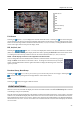
You also can use the mouse for convenient playback control. Position the mouse pointer on the playback screen, and
the following Record Table Search screen (Compact View mode) will display. Refer to the following Searching Video –
Search Filter section for information regarding the Record Table Search. The individual controls on the toolbar perform
the following functions:
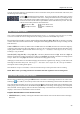
Go to the previous image Play/Pause Go to the next image
Fast backward play Fast forward play
SEARCHING VIDEO
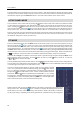
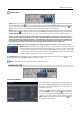
While in the Search mode, pressing the MENU button on the remote control displays the following menu icons at the
top of the screen. Pressing the MENU button again hides the menu icons.
Search Filter
Go To
Clip-Copy
Camera Menu
Alarm Off
Exit
NOTE: The menu icons also can be displayed by moving the mouse pointer to the top of the screen.
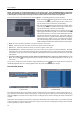
Search Filter: Selects video from the event log, searches using a recording table or searches motion events
(see below for more details).
Go To: Displays the first or last recorded image, or searches by date and time (see below for more details).
Clip-Copy: Copies a video segment and saves it (see below for more details).