
Manual



User’s Manual
14
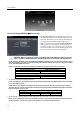
Storage Settings (SYSTEM Storage Tab)
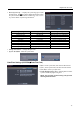
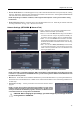
Capacity: Displays the capacity of the storage drive.
Disk Bad: Displays the damage status of the storage drive.
Not Formatted – The device is not formatted.
Good (%) – The device is working properly though some
portion (%) of the storage is damaged.
Bad – More than 90% of the storage is damaged.
Temperature: Displays the temperature of the storage drive.
N/A – The DVR cannot read the temperature.
Good – The temperature is normal.
Bad – The temperature is 70
o
C (158
o
F) or higher.
S.M.A.R.T.: Displays S.M.A.R.T. information of the storage.
Good – The storage condition is normal.
Bad – Data cannot be written on or read from the storage drive.
N/A – The S.M.A.R.T. monitoring is not working or supported.
NOTE: When the S.M.A.R.T. displays Bad, the screen displays a message box. Once the message box appears,
replacing the hard disk drive is recommended, usually within 24 hours.
Recorded Data: Displays the time information about recorded data on the drive. Selecting Clear All Data… will
clear all video data except the system log. When the hard disk drive has not been formatted, the Clear All Data…
button changes to the Format… button which is used to format the hard disk drive.
NETWORK SETUP
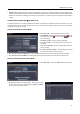
General Settings (NETWORK General Tab)
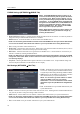
Transfer Speed: Set the transfer speed, and select the
unit of measure for the transfer speed between bps (bit
per second) and ips (image per second).
Quality: Select the quality of the transferred image.
NOTE: The local recording speed might be affected by
various network bandwidth (Transfer Speed) conditions.
NOTE: The higher Quality settings require higher
Transfer Speed settings. The transfer speed you set
is the maximum speed. Depending on the network
environment, this speed may not be achieved.