
Specifications
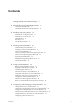
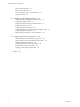

Table Of Contents
- Getting Started with VMware Player
- Contents
- Getting Started with VMware Player
- Introduction and System Requirements
- Installing and Using Player
- Creating Virtual Machines
- Understanding Virtual Machines
- Preparing to Create a Virtual Machine
- Create a Virtual Machine
- Use Easy Install to Install a Guest Operating System
- Install a Guest Operating System Manually
- Importing Virtual Machines
- Installing and Upgrading VMware Tools
- Installing VMware Tools
- Upgrading VMware Tools
- Configure Software Update Preferences
- Configure VMware Tools Updates for a Specific Virtual Machine
- Manually Installing and Upgrading VMware Tools
- Manually Install or Upgrade VMware Tools in a Windows Virtual Machine
- Manually Install or Upgrade VMware Tools in a Linux Virtual Machine
- Manually Install or Upgrade VMware Tools in a NetWare Virtual Machine
- Manually Install or Upgrade VMware Tools in a Solaris Virtual Machine
- Manually Install or Upgrade VMware Tools in a FreeBSD Virtual Machine
- Start the VMware User Process Manually If You Do Not Use a Session Manager
- Uninstall VMware Tools
- Virtual Machine Files
- Using Virtual Machines
- Starting Virtual Machines in Player
- Stopping Virtual Machines in Player
- Transferring Files and Text
- Using the Drag-and-Drop Feature
- Using the Copy and Paste Feature
- Using Shared Folders
- Mapping a Virtual Disk to the Host System
- Add a Host Printer to a Virtual Machine
- Using Removable Devices in Virtual Machines
- Install New Software in a Virtual Machine
- Changing the Virtual Machine Display
- Download a Virtual Appliance in Player
- Remove a Virtual Machine from the Library in Player
- Configuring and Managing Virtual Machines
- Change the Name of a Virtual Machine
- Change the Guest Operating System for a Virtual Machine
- Change the Working Directory for a Virtual Machine
- Change the Virtual Machine Directory for a Virtual Machine
- Change the Memory Allocation for a Virtual Machine
- Configuring Video and Sound
- Moving Virtual Machines
- Delete a Virtual Machine
- View the Message Log for a Virtual Machine
- Using the VIX API
- Configuring and Managing Devices
- Configuring DVD, CD-ROM, and Floppy Drives
- Configuring a USB Controller
- Configuring and Maintaining Virtual Hard Disks
- Configuring Virtual Ports
- Add a Virtual Parallel Port to a Virtual Machine
- Configure a Virtual Parallel Port on a Linux 2.6.x Kernel Host
- Configure Permissions for a Parallel Port Device on a Linux Host
- Troubleshoot ECR Errors for Parallel Ports
- Add a Virtual Serial Port to a Virtual Machine
- Change the Input Speed of a Serial Connection
- Configuring Generic SCSI Devices
- Configuring Eight-Way Virtual Symmetric Multiprocessing
- Configuring Keyboard Features
- Modify Hardware Settings for a Virtual Machine
- Configuring Network Connections
- Index

If you have an Intel CPU that has VT-x support, you must verify that VT-x support is enabled in the host
system BIOS. The BIOS settings that must be enabled for VT-x support vary depending on the system
vendor. See the VMware knowledge base article at http://kb.vmware.com/kb/1003944 for information about
how to determine if VT-x support is enabled.
When you install a 64-bit operating system, Player performs checks to make sure the host system has a
supported processor. You cannot install a 64-bit operating system if the host system does not meet the
processor requirements.
Processor Requirements for Windows 7 Aero Graphics
To support Windows 7 Aero graphics, the host system should have either an Intel Dual Core 2.2GHz or later
CPU or an AMD Athlon 4200+ or later CPU.
Supported Host Operating Systems
You can install Player on Windows and Linux host operating systems.
To see a list of the supported host operating systems, search the online VMware Compatibility Guide on the
VMware Web site.
Player is not listed, but the information for Workstation is applicable to Player. Operating systems that are
not listed are not supported for use in a virtual machine.
Memory Requirements for Host Systems
The host system must have enough memory to run the host operating system, the guest operating systems
that run inside the virtual machines on the host system, and the applications that run in the host and guest
operating systems.
The minimum memory required on the host system is 1GB. 2GB and above is recommended.
To support Windows 7 Aero graphics in a virtual machine, at least 3GB of host system memory is required.
1GB of memory is allocated to the guest operating system and 256MB is allocated to graphics memory.
See your guest operating system and application documentation for more information on memory
requirements.
Display Requirements for Host Systems
The host system must have a 16-bit or 32-bit display adapter. Use the latest graphics driver recommended
for the host system.
To support Windows 7 Aero graphics, the host system should have either an NVIDIA GeForce 8800GT or
later or an ATI Radeon HD 2600 or later graphics processor.
IMPORTANT 3D benchmarks, such as 3DMark '06, might not render correctly or at all when running
Windows Vista or Windows 7 virtual machines on some graphics hardware.
Getting Started with VMware Player
8 VMware, Inc.