
Specifications

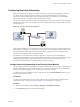
Table Of Contents
- Getting Started with VMware Player
- Contents
- Getting Started with VMware Player
- Introduction and System Requirements
- Installing and Using Player
- Creating Virtual Machines
- Understanding Virtual Machines
- Preparing to Create a Virtual Machine
- Create a Virtual Machine
- Use Easy Install to Install a Guest Operating System
- Install a Guest Operating System Manually
- Importing Virtual Machines
- Installing and Upgrading VMware Tools
- Installing VMware Tools
- Upgrading VMware Tools
- Configure Software Update Preferences
- Configure VMware Tools Updates for a Specific Virtual Machine
- Manually Installing and Upgrading VMware Tools
- Manually Install or Upgrade VMware Tools in a Windows Virtual Machine
- Manually Install or Upgrade VMware Tools in a Linux Virtual Machine
- Manually Install or Upgrade VMware Tools in a NetWare Virtual Machine
- Manually Install or Upgrade VMware Tools in a Solaris Virtual Machine
- Manually Install or Upgrade VMware Tools in a FreeBSD Virtual Machine
- Start the VMware User Process Manually If You Do Not Use a Session Manager
- Uninstall VMware Tools
- Virtual Machine Files
- Using Virtual Machines
- Starting Virtual Machines in Player
- Stopping Virtual Machines in Player
- Transferring Files and Text
- Using the Drag-and-Drop Feature
- Using the Copy and Paste Feature
- Using Shared Folders
- Mapping a Virtual Disk to the Host System
- Add a Host Printer to a Virtual Machine
- Using Removable Devices in Virtual Machines
- Install New Software in a Virtual Machine
- Changing the Virtual Machine Display
- Download a Virtual Appliance in Player
- Remove a Virtual Machine from the Library in Player
- Configuring and Managing Virtual Machines
- Change the Name of a Virtual Machine
- Change the Guest Operating System for a Virtual Machine
- Change the Working Directory for a Virtual Machine
- Change the Virtual Machine Directory for a Virtual Machine
- Change the Memory Allocation for a Virtual Machine
- Configuring Video and Sound
- Moving Virtual Machines
- Delete a Virtual Machine
- View the Message Log for a Virtual Machine
- Using the VIX API
- Configuring and Managing Devices
- Configuring DVD, CD-ROM, and Floppy Drives
- Configuring a USB Controller
- Configuring and Maintaining Virtual Hard Disks
- Configuring Virtual Ports
- Add a Virtual Parallel Port to a Virtual Machine
- Configure a Virtual Parallel Port on a Linux 2.6.x Kernel Host
- Configure Permissions for a Parallel Port Device on a Linux Host
- Troubleshoot ECR Errors for Parallel Ports
- Add a Virtual Serial Port to a Virtual Machine
- Change the Input Speed of a Serial Connection
- Configuring Generic SCSI Devices
- Configuring Eight-Way Virtual Symmetric Multiprocessing
- Configuring Keyboard Features
- Modify Hardware Settings for a Virtual Machine
- Configuring Network Connections
- Index

Configuring Host-Only Networking
When you install Player on a Windows or Linux host system, a host-only network (VMnet1) is set up for
you. Host-only networking is useful if you need to set up an isolated virtual network. In a host-only
network, the virtual machine and the host virtual network adapter are connected to a private Ethernet
network. The network is completely contained within the host system.
The network connection between the virtual machine and the host system is provided by a virtual network
adapter that is visible on the host operating system. The virtual DHCP server provides IP addresses on the
host-only network.
Figure 7‑3. Host-Only Networking Configuration
host
network
adapter
virtual
network
adapter
virtual network switch
(VMnet1)
virtual machine
DHCP server
In the default configuration, a virtual machine in a host-only network cannot connect to the Internet. If you
install the proper routing or proxy software on the host system, you can establish a connection between the
host virtual network adapter and a physical network adapter on the host system to connect the virtual
machine to a Token Ring or other non-Ethernet network.
On a Windows XP or Windows Server 2003 host computer, you can use host-only networking in
combination with the Internet connection sharing feature in Windows to allow a virtual machine to use the
dial-up networking adapter or other connection to the Internet on the host system. See Microsoft
documentation for information on configuring Internet connection sharing.
Configure Host-Only Networking for an Existing Virtual Machine
You can configure host-only networking for an existing virtual machine. You can connect a virtual network
adapter to the default host-only network (VMnet1) or to a custom host-only network. If a virtual machine
has two virtual network adapters, you can connect it to two host-only networks.
To configure host-only networking for a new virtual machine, select Customize Hardware when you run
the New Virtual Machine wizard.
Prerequisites
To connect the virtual machine to two host-only networks, add a second virtual network adapter to the
virtual machine. See “Add a Virtual Network Adapter to a Virtual Machine,” on page 110.
Procedure
1 Select the virtual machine and select Player > Manage > Virtual Machine Settings.
2 On the Hardware tab select a virtual network adapter.
Chapter 7 Configuring Network Connections
VMware, Inc. 109