
Specifications
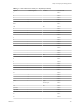
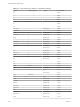
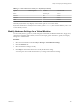

Table Of Contents
- Getting Started with VMware Player
- Contents
- Getting Started with VMware Player
- Introduction and System Requirements
- Installing and Using Player
- Creating Virtual Machines
- Understanding Virtual Machines
- Preparing to Create a Virtual Machine
- Create a Virtual Machine
- Use Easy Install to Install a Guest Operating System
- Install a Guest Operating System Manually
- Importing Virtual Machines
- Installing and Upgrading VMware Tools
- Installing VMware Tools
- Upgrading VMware Tools
- Configure Software Update Preferences
- Configure VMware Tools Updates for a Specific Virtual Machine
- Manually Installing and Upgrading VMware Tools
- Manually Install or Upgrade VMware Tools in a Windows Virtual Machine
- Manually Install or Upgrade VMware Tools in a Linux Virtual Machine
- Manually Install or Upgrade VMware Tools in a NetWare Virtual Machine
- Manually Install or Upgrade VMware Tools in a Solaris Virtual Machine
- Manually Install or Upgrade VMware Tools in a FreeBSD Virtual Machine
- Start the VMware User Process Manually If You Do Not Use a Session Manager
- Uninstall VMware Tools
- Virtual Machine Files
- Using Virtual Machines
- Starting Virtual Machines in Player
- Stopping Virtual Machines in Player
- Transferring Files and Text
- Using the Drag-and-Drop Feature
- Using the Copy and Paste Feature
- Using Shared Folders
- Mapping a Virtual Disk to the Host System
- Add a Host Printer to a Virtual Machine
- Using Removable Devices in Virtual Machines
- Install New Software in a Virtual Machine
- Changing the Virtual Machine Display
- Download a Virtual Appliance in Player
- Remove a Virtual Machine from the Library in Player
- Configuring and Managing Virtual Machines
- Change the Name of a Virtual Machine
- Change the Guest Operating System for a Virtual Machine
- Change the Working Directory for a Virtual Machine
- Change the Virtual Machine Directory for a Virtual Machine
- Change the Memory Allocation for a Virtual Machine
- Configuring Video and Sound
- Moving Virtual Machines
- Delete a Virtual Machine
- View the Message Log for a Virtual Machine
- Using the VIX API
- Configuring and Managing Devices
- Configuring DVD, CD-ROM, and Floppy Drives
- Configuring a USB Controller
- Configuring and Maintaining Virtual Hard Disks
- Configuring Virtual Ports
- Add a Virtual Parallel Port to a Virtual Machine
- Configure a Virtual Parallel Port on a Linux 2.6.x Kernel Host
- Configure Permissions for a Parallel Port Device on a Linux Host
- Troubleshoot ECR Errors for Parallel Ports
- Add a Virtual Serial Port to a Virtual Machine
- Change the Input Speed of a Serial Connection
- Configuring Generic SCSI Devices
- Configuring Eight-Way Virtual Symmetric Multiprocessing
- Configuring Keyboard Features
- Modify Hardware Settings for a Virtual Machine
- Configuring Network Connections
- Index

Table 6‑1. V-Scan Codes for the 104-Key U.S. Keyboard (Continued)
Symbol Shifted Symbol Location V-Scan Code
F4 0x03e
F5 0x03f
F6 0x040
F7 0x041
F8 0x042
F9 0x043
F10 0x044
Num Lock numeric pad 0x045
Scroll Lock 0x046
Home 7 numeric pad 0x047
Up arrow 8 numeric pad 0x048
PgUp 9 numeric pad 0x049
- numeric pad 0x04a
Left arrow 4 numeric pad 0x04b
5 numeric pad 0x04c
Right arrow 6 numeric pad 0x04d
+ numeric pad 0x04e
End 1 numeric pad 0x04f
Down arrow 2 numeric pad 0x050
PgDn 3 numeric pad 0x051
Ins 0 numeric pad 0x052
Del numeric pad 0x053
F11 0x057
F12 0x058
Break Pause 0x100
Enter numeric pad 0x11c
Ctrl right 0x11d
/ numeric pad 0x135
SysRq Print Scrn 0x137
Alt right 0x138
Home function pad 0x147
Up arrow function pad 0x148
Page Up function pad 0x149
Left arrow function pad 0x14b
Right arrow function pad 0x14d
End function pad 0x14f
Down arrow function pad 0x150
Page Down function pad 0x151
Insert function pad 0x152
Getting Started with VMware Player
102 VMware, Inc.