
Specifications
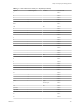
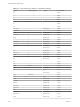
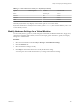
Table Of Contents
- Getting Started with VMware Player
- Contents
- Getting Started with VMware Player
- Introduction and System Requirements
- Installing and Using Player
- Creating Virtual Machines
- Understanding Virtual Machines
- Preparing to Create a Virtual Machine
- Create a Virtual Machine
- Use Easy Install to Install a Guest Operating System
- Install a Guest Operating System Manually
- Importing Virtual Machines
- Installing and Upgrading VMware Tools
- Installing VMware Tools
- Upgrading VMware Tools
- Configure Software Update Preferences
- Configure VMware Tools Updates for a Specific Virtual Machine
- Manually Installing and Upgrading VMware Tools
- Manually Install or Upgrade VMware Tools in a Windows Virtual Machine
- Manually Install or Upgrade VMware Tools in a Linux Virtual Machine
- Manually Install or Upgrade VMware Tools in a NetWare Virtual Machine
- Manually Install or Upgrade VMware Tools in a Solaris Virtual Machine
- Manually Install or Upgrade VMware Tools in a FreeBSD Virtual Machine
- Start the VMware User Process Manually If You Do Not Use a Session Manager
- Uninstall VMware Tools
- Virtual Machine Files
- Using Virtual Machines
- Starting Virtual Machines in Player
- Stopping Virtual Machines in Player
- Transferring Files and Text
- Using the Drag-and-Drop Feature
- Using the Copy and Paste Feature
- Using Shared Folders
- Mapping a Virtual Disk to the Host System
- Add a Host Printer to a Virtual Machine
- Using Removable Devices in Virtual Machines
- Install New Software in a Virtual Machine
- Changing the Virtual Machine Display
- Download a Virtual Appliance in Player
- Remove a Virtual Machine from the Library in Player
- Configuring and Managing Virtual Machines
- Change the Name of a Virtual Machine
- Change the Guest Operating System for a Virtual Machine
- Change the Working Directory for a Virtual Machine
- Change the Virtual Machine Directory for a Virtual Machine
- Change the Memory Allocation for a Virtual Machine
- Configuring Video and Sound
- Moving Virtual Machines
- Delete a Virtual Machine
- View the Message Log for a Virtual Machine
- Using the VIX API
- Configuring and Managing Devices
- Configuring DVD, CD-ROM, and Floppy Drives
- Configuring a USB Controller
- Configuring and Maintaining Virtual Hard Disks
- Configuring Virtual Ports
- Add a Virtual Parallel Port to a Virtual Machine
- Configure a Virtual Parallel Port on a Linux 2.6.x Kernel Host
- Configure Permissions for a Parallel Port Device on a Linux Host
- Troubleshoot ECR Errors for Parallel Ports
- Add a Virtual Serial Port to a Virtual Machine
- Change the Input Speed of a Serial Connection
- Configuring Generic SCSI Devices
- Configuring Eight-Way Virtual Symmetric Multiprocessing
- Configuring Keyboard Features
- Modify Hardware Settings for a Virtual Machine
- Configuring Network Connections
- Index

Table 6‑1. V-Scan Codes for the 104-Key U.S. Keyboard (Continued)
Symbol Shifted Symbol Location V-Scan Code
I 0x017
O 0x018
P 0x019
[ { 0x01a
] } 0x01b
Enter 0x01c
Ctrl left 0x01d
A 0x01e
S 0x01f
D 0x020
F 0x021
G 0x022
H 0x023
J 0x024
K 0x025
L 0x026
; 0x027
' 0x028
` 0x029
Shift left 0x02a
\ | 0x02b
Z 0x02c
X 0x02d
C 0x02e
V 0x02f
B 0x030
N 0x031
M 0x032
, < 0x033
. > 0x034
/ ? 0x035
Shift right 0x036
* numeric pad 0x037
Alt left 0x038
Space bar 0x039
Caps Lock 0x03a
F1 0x03b
F2 0x03c
F3 0x03d
Chapter 6 Configuring and Managing Devices
VMware, Inc. 101