
User manual




LOGO Mobile Phone User Manual
___________________________________________________________
____________________________________________
© 2010 Real Phone Corporation. All Rights Reserved. PAGE 17
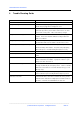
9 Trouble Shooting Guide
PROBLEM POSSIBLE SOLUTION
Battery will not charge Make sure the battery charger plug is securely connected to the handset
and the charger is plugged into a working power source.
Phone will not turn on Make sure the battery cutoff switch under the right rubber boot is in the “on”
position (the up position). Cycle the switch to off then back to on to make
sure it is in the correct position. Make sure the battery is charged.
Message “Insert SIM Card” appears The handset does not have a SIM card or the SIM card is not properly
installed. Remove and reinstall the SIM card according to Quick Start
Guide or User Manual.
Message “Input PIN Code” appears The SIM card being used requires a PIN Code. It should have been
provided with the SIM card, if not available contact the wireless carrier.
Cannot complete Voice Recognition training Conduct the training in a quiet environment. Speak clearly and hold the
handset according to the instructions. Respond to each prompt quickly
after each beep tone. Restart the training and repeat as necessary.
Cannot voice diala number Train the voice recognition function of the handset.
Cannot complete a call Make sure SIM card is installed correctly and is activated with the wireless
carrier.
Cannot receive a call Check that SIM Card is properly installed and activated. If using a prepaid
SIM check that minutes are available. Cycle phone on then off. Cycle
batterycutoff switch off then back on.
Cannot receive a text message Be sure that the SIM Card is installed correctly and activated; and that SMS
messages are allowed by the service plan you have. Check to see that the
SMS Service Center number is correct in the handsets memory (see 7.2.4
Message set-up).
Volume is too low Adjust volume with the up and down keys during a call. Check that the
speaker is turned on if you are holding the handset away from your ear.
Cannot access voice mail Confirm that the wireless carrier offers voicemail for the service you have.
Follow the carrier’s instructions for setting up the voice mail box and access
procedures. Review the Voice Mail Edit menu in section 7.3.2