
AUDIO/VIDEO RECEIVER User's Guide



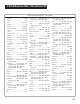

Table Of Contents
- Table of Contents
- First Things First
- Operating the Receiver
- Tour of the Receiver
- Programming the Remote
- Programming the Universal Remote
- Programming the Universal Remote to Control a TV
- Programming the Universal Remote to Control a VCR
- Programming the Universal Remote to Control An Audio Component
- Programming the Universal Remote to Control a Cable Box
- Programming the Universal Remote to Control a Laserdisc Player
- Programming the Remote to Control an RCA DSS® Receiver
- Programming the Universal Remote to Control a Satellite
- Programming the AUX Button on the Remote
- Appendix A: Connecting Your Receiver
- Things to Know Before Connecting the Components
- Using the Subwoofer Connections
- Connecting a TV and VCR
- Connecting an RCA DSS® Receiver
- Connecting a Laserdisc Player
- Connecting a Second VCR
- Connecting a Camcorder or Video Camera
- Connecting a Compact Disc Player
- Connecting a Tape Deck or Minidisc Player
- Connecting Antennas
- Connecting Speakers
- Main Speakers
- Rear Speakers
- Center Speaker
- Connecting Speakers to the Receiver
- Connecting The Subwoofer
- Appendix B: Speaker Placement
- Appendix C: Troubleshooting Guide
- Appendix D: Care and Cleaning
- Appendix E: FCC Information
- Appendix F: Limited Warranty
- Appendix G: Equipment Specifications
- Appendix H: Preset Station List Form
- Index

28
Programming the Universal Remote
to Control a VCR
To determine whether you need to program the
universal remote, turn on the VCR, point the remote at
the VCR’s remote sensor, and press VCR1. Then, press the
POWER or CHAN UP or DOWN button to see if the VCR
responds to the remote commands. If not, you need to
program the remote.
Follow these steps to program your universal remote to
control your VCR:
1. Turn on the VCR.
2. Look up your VCR brand and code number(s)
in the code list on the next page or on the
code sheet packed with your remote.
3. Press and hold the VCR1 button on
the remote.
4. Enter the three-digit code from the code list.
5. Release the VCR1 button, then press POWER
to see if the VCR responds to the remote
commands. If not, try pressing VCR1
then POWER.
6. Repeat steps 3 through 5 using the next code
listed for your VCR brand until the VCR
responds to the remote commands.
Programming the Remote
This remote may not operate all
models of the brands shown.
To program the VCR2•LD button
to control a second VCR, follow
these steps but use the
VCR2•LD button instead of the
VCR1 button.