IP Video Decoder User’s Guide Changing Entertainment. Again. TOCOM 16195310 English/Français/Español IP900 IP900.
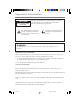
Important Information CAUTION RISK OF ELECTRIC SHOCK. DO NOT OPEN. Caution: To reduce the risk of electric shock, do not remove cover (or back). No user serviceable parts inside. Refer servicing to qualified service personnel. This symbol indicates "dangerous voltage" inside the product that presents a risk of electric shock or personal injury. This symbol indicates important instructions accompanying the product.
Table of Contents Chapter 1: Connections and Setup Things to Consider Before Connecting Components ............................... 3 Cables to Connect Components to Your IP Decoder ................................ 3 Choose Your Connection............................................................................. 4 TV + IP Decoder + Modem ......................................................................... 5 TV + VCR + IP Decoder + Modem .............................................................
Table of Contents Chapter 4: Additional Information Troubleshooting ......................................................................................... 22 Care and Cleaning ..................................................................................... 23 Service Information .................................................................................. 23 FCC and Industry Canada Information .................................................... 24 Front of the Decoder .........................
Chapter 1: Connections and Setup Things to Consider Before Connecting Components Protect Components From Power Surges • Connect all components before plugging any power cords into the wall outlet. • Always turn off the TV and other components before you connect or disconnect any cables. Position Cables to Avoid Audio Hum or Interference • Insert all cable plugs firmly into their jacks.
Chapter 1: Connections and Setup Choose Your Connection There are several ways to hook up your IP decoder, depending on the components connected. Please use the following chart to determine which connection is best for you and proceed to the appropriate page. Note: For assistance in connecting your decoder, contact your service provider.
Chapter 1: Connections and Setup TV AUDIO R L / MONO The back of your TV might not look exactly like the one shown here. VIDEO IN L CABLE/ ANTENNA OUT TV S-VIDEO 1A IP DECODER ETHERNET R AUDIO L RF MOD VIDEO S-VIDEO DIGITAL AUDIO Am0 0 der eco IP D POWER 4 2 MODEM Caution: To reduce the risk of fire, use only No. 26 AWG or larger DSL telecommunication line cord. DSL LINE IN em Mod ETHERNET 3 From DSL or other Broadband Connection TV + IP Decoder + Modem 1.
Chapter 1: Connections and Setup TV AUDIO L/ MONO VIDEO The back of your TV might not look exactly like the one shown here. R IN TV L OUT CABLE/ ANTENNA S-VIDEO VCR 1A 1B VCR The back of your VCR might not look exactly like the one shown here. ANT. IN AUDIO R der eco IP D L OUT IN RF OUT VIDEO 2A IP DECODER em Mod R ETHERNET AUDIO L RF MOD VIDEO S-VIDEO DIGITAL AUDIO 3 POWER 5 MODEM Caution: To reduce the risk of fire, use only No.
Chapter 1: Connections and Setup TV + VCR + IP Decoder + Modem 1. Connect the VCR to the TV A. Connect one end of the RF coaxial cable to the RF OUT jack on the back of the VCR and the other end to the TV’s antenna in jack (sometimes labeled CABLE/ANTENNA). – OR – B. Connect audio/video cables to the AUDIO OUT R and L jacks on the back of the VCR (color coded, red and white), and to the VIDEO OUT jack (yellow).
Chapter 1: Connections and Setup TV AUDIO R L / MONO The back of your TV might not look exactly like the one shown here. VIDEO IN TV L CABLE/ ANTENNA OUT S-VIDEO iver ece R A/V 1A A/V RECEIVER CD IN COAX OUT TV IN The back of your receiver might not look exactly like the one shown here.
Chapter 1: Connections and Setup TV + A/V Receiver + IP Decoder + Modem 1. Connect the Decoder to the TV A. Connect the video cable to the VIDEO OUT jack (yellow) on the back of the decoder and the other end of the cable to the corresponding input jack on the TV (sometimes labeled VIDEO). B. If your TV doesn’t have a video input jack, you need to use an RF modulator (not included). Connect the three-pronged end of the modulator cable into the AUDIO OUT L, RF MOD, and VIDEO jacks on the back of the decoder.
Chapter 1: Connections and Setup Turn on the TV and IP Decoder 1. Turn on the TV (if the TV you’ve connected to the decoder is a compatible RCA, GE, or Proscan TV, press the TV button on the remote packed with your decoder). 2. Tune the TV to the correct Video Input Channel. • If you used a coaxial cable (with optional RF modulator) to connect your decoder to your TV, tune the TV to channel 3 or 4.
Chapter 2: The Remote Control The Buttons on the Remote Control AUX VIDEO ON • OFF WEB MUTE (0-9) Number buttons Select channels by pressing the number buttons. TV EMAIL VOD Red, green, yellow, and blue buttons (at the bottom of the remote) Specific functions defined by your service provider. HOME CH + VOL VOL ANTENNA In decoder mode, turns off the decoder signal to allow other signals to pass through. In VCR mode, functions as the TV/VCR button.
Chapter 2: Remote Control AUX VIDEO ON • OFF WEB MUTE OK•SELECT In on-screen menus, this button acts as an Enter button (used in conjunction with the remote control’s arrow buttons). This button selects the highlighted on-screen menu item. TV EMAIL VOD ON•OFF Turns the component on or off when the remote control is set to operate that component. HOME CH + PAUSE VOL VOL PLAY Pauses playback or recording. Plays video.
Chapter 2: Remote Control Using the INPUT Button Use the INPUT button to scroll through the available Video Input Channel sources for a TV or VCR and regular broadcast signals. The Video Input Channels allow you to view images from a component connected to the TV or VCR (such as a camcorder or DVD player). 1. Press the remote control’s TV or AUX button (if programmed) to enter the corresponding mode. Make sure the component is turned ON. 2.
Chapter 2: Remote Control Programming the Remote to Operate Other Components The universal remote can be programmed to operate most brands of remote controllable components. The remote is already programmed to operate most RCA, GE, and Proscan components. Find Out If You Need to Program the Remote To determine whether the universal remote needs to be programmed for your component, turn the component ON. For example, to program the remote for a TV, turn on the TV.
Chapter 2: Remote Control Using Automatic Code Search to Program Your TV AUX ON • OFF TV You can program the remote to operate your TV. To stop the automatic code search without programming your TV, press EXIT•CLEAR until the indicator on the remote turns off. Note: AUX can’t be programmed using the automatic code search method. Indicator 1. Turn on your TV. 2. Press and hold the TV button. While holding TV, press and hold ON•OFF until the indicator on the remote turns on, then release both buttons.
Chapter 2: Remote Control Code List TV Codes Abex ............................................................................... 1172 Admiral .................................................. 1001, 1173, 1211 Adventura ..................................................................... 1174 Aiko ............................................................................... 1016 Akai ............................................................................... 1002 Alleron ............................
Chapter 2: Remote Control Colt ................................................................................ 2061 Craig .......................................... 2013, 2014, 2023, 2061 Curtis-Mathes ................................... 2000, 2009, 2013, 2016, 2018, 2021, 2022, 2024, 2115, 2131 Cybernex ...................................................................... 2013 Daewoo ....................... 2015, 2017, 2019, 2025, 2026, 2027, 2028, 2110 Daytron ...........................................
Chapter 3: Decoder Features Using the Remote Control to Choose On-screen Menu Items The technical term is “Navigation” – how you move through the on-screen menus. The theory is the same throughout the menu screens: highlight your choice and select it. To highlight a menu item, press the arrow buttons on the remote or the keyboard. Use the up or down arrow button to move up or down. Use the right or left arrow button to move left or right. To select the item that you’ve highlighted, press OK•SELECT.
Chapter Chapter3:3:Decoder DecoderFeatures Features Using the Web Browser The web browser is where you do all your internet browsing. Not only can you surf all your favorite websites, but you can also view and save your bookmarks, view your browsing history, and search for new websites. Browser Banner The browser banner gives you information, such as how to bring up the browser tool bar or take it away, and also the loading status of the current page.
Chapter 3: Decoder Features Web Page Navigation You can use the arrow buttons on the remote or the optional wireless keyboard to move around web pages. To hide the browser toolbar so that you can browse the page, press the TOOLS button or use the up arrow button to move from the toolbar to the website. Notes: • While the toolbar is on the screen, you can’t browse the web page or access links. • While navigating a web page, you can only bring up the toolbar using the TOOLS button.
Chapter 3: Decoder Features Saving Your Bookmarks 1. 2. 3. 4. 5. Go to the webpage you want to save. Press the TOOLS button (the browser toolbar appears). Use the arrow buttons to highlight the More button. Press OK to select it (the More Features menu appears). Highlight Save Bookmarks. Press OK (your bookmark saves). Viewing Your History 1. Press the TOOLS button (the browser toolbar appears). 2. Use the arrow buttons to highlight the More button. 3.
Chapter 4: Additional Information Troubleshooting You can correct most problems you have with your product by consulting the troubleshooting list that follows. If you need service, please contact your service provider. Decoder Problems Decoder won’t turn on • • • • Press the VIDEO button. Make sure the decoder is plugged in. Check the wall receptacle (or extension cord) to make sure it is “live” by plugging in something else. Something might be wrong with your remote control or keyboard.
Chapter 4: Additional Information Remote Control or Wireless Keyboard Problems • • • • • • Something might be between the remote or keyboard and the remote sensor on the component. Make sure there is a clear path. Maybe the remote isn’t aimed directly at the component (TV or decoder) that you’re trying to operate. Maybe remote or keyboard is not in a decoder mode. Press the VIDEO button to operate the decoder. Maybe batteries in remote are weak, dead, or installed incorrectly.
Chapter 4: Additional Information FCC and Industry Canada Information This equipment has been tested and found to comply with the limits for a Class B digital device, pursuant to Part 15 of the FCC Rules. These limits are designed to provide reasonable protection against harmful interference in a residential installation.
Chapter 4: Additional Information po we r Front of the Decoder Power indicator – Indicates whether the unit is on or in standby mode. Flashes when there is a broken connection to the service provider or service is momentarily unavailable. ETHERNET R 1 AUDIO L RF MOD VIDEO S-VIDEO 2 34 5 DIGITAL AUDIO POWER 6 7 Back of the Decoder When connecting, make sure you connect Output jacks to Input jacks, Video to Video, Right Audio to Right Audio, etc. A description of each jack follows.
Chapter 4: Additional Information How to Find Your TV’s Video Input Channel You must tune your TV to the video input channel if you are using the IP video decoder’s Audio/Video (A/ V) OUT jacks to connect to the TV’s A/V input jacks. You must select the TV’s video input channel before you can see the decoder’s menus or programming. The video input channel for TVs varies by brand and model.
This page intentionally left blank. IP900.
This page intentionally left blank. IP900.
IP900.
Visit the RCA website at www.rca.com Please do not send any products to the Indianapolis address listed in this manual or on the carton. This will only add delays in service for your product. Thomson Inc. 10330 North Meridian Street Indianapolis, IN 46290 ©2003 Thomson Inc. Trademark(s)® Registered Marca(s) Registrada(s) Printed in Taiwan TOCOM 16195310 IP900.