STC-TGL2M / STC-TGL4M / STC-TGL5M User’s Manual Toll Free Customer Support 1-888-304-6125 www.wildviewcam.com Version 1.
Wildview Series For Customer Service or Warranty Information Call Toll Free 888-304-6125 WILDVIEW P.O. Box 535189 Grand Prairie, Texas 75053-5189 Wildview Limited Warranty Your Wildview scouting camera is covered by a 90 days Limited Warranty on parts and labor from the date of original purchase, and purchases must be made through an authorized dealer. The warranty covers defects in workmanship and materials.
Wildview Series Manual Contents Camera overview 4 Camera kit contents 6 Battery and memory Installation 6 Definition 10 Programming 11 Mounting the camera 14 Viewing images 18 Saving and Deleting images 21 Memory compatibility chart 24 Technical Specs 25 General Information 28 Image Capacity Chart 30 www.wildviewcam.
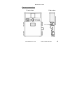
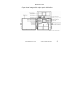
Wildview Series Camera overview Front view www.wildviewcam.
Wildview Series Open view image with major parts indication www.wildviewcam.
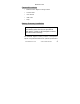
Wildview Series Camera kit contents • Wildview series Digital Scouting Camera • Camera driver • User Manual • USB cable • Strap Battery & memory installation Warning: Do not use a different Voltage lead acid battery other than the one specified in this section. Doing so will damage the camera and will void the warranty. The Wildview Digital Scouting Camera is designed to operate using alkaline batteries for optimum performance. www.wildviewcam.
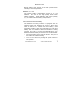
Wildview Series NOTE: Always have camera in the OFF position when installing or removing batteries. Batteries “C” cell The internal battery compartment accepts 4 “C” cell batteries. Be sure to use high quality brand name alkaline batteries. Install batteries with correct polarity (+/-) as noted inside the battery compartment. 12V Lead Acid external battery The Wildview Scouting Camera is equipped with an external power jack designed to accept a barrel plug cable to attach to a sealed lead acid battery.
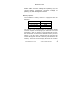
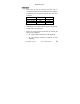
Wildview Series Please make sure the voltage and polarity (+/-) are correct before connection. Incorrect voltage or polarity (+/-) will damage the camera. Memory Options Your Wildview scouting camera is equipped with the following: Model STC-TGL2M STC-TGL4M STC-TGL5M SDRAM 16MB 32MB 32MB The camera is also equipped with an expandable media card slot capable of accepting up to 2GB* SD card (sold separately).
Wildview Series of images on the built in memory unless the expansion card is inserted at which point the front counter will only display the number of images stored in the expansion card. Inserting SD card Make sure camera is in the OFF position whenever adding or removing memory. • Insert SD memory card in to the SD card slot completely and in the correct direction as shown on the inside of the housing. • To remove the SD memory card, depress the SD card and pull out the card gently.
Wildview Series Definition • Time out: To set the amount of preset time in minutes the camera will sleep between PIR triggering • Resolution: The resolution selection that you have selected. Model STC-TGL2M STC-TGL4M STC-TGL5M Hi 2.0M 4.0M 5.0M Low 0.3M 1.3M 3.
Wildview Series • o 3P: Three images continuous capturing per PIR triggering o AVI: 10 second video clip per PIR triggering FULL: When memory capacity is full, this front LCD screen will show “FULL” Programming your Wildview Camera The following setting must be performed before you turn on the camera. 1. Select the time out interval by sliding the time out toggle switch to the desired preset time interval in minutes. 1 / 5 / 10 / 20 minutes. 2.
Wildview Series conditions. b. On – Flash on for every image captured c. Off – No Flash will go off. 4. Select Burst mode: Slide the switch to 1 / 2 / 3 / AVI position. If you choose AVI mode, the camera will automatically switch to 1 picture mode if it detects a low light source. 5. Turn on the Camera to set the Date / Time stamp a. Slide the power switch to the PIR position b. Press and hold [SET] button for 2 seconds to enter date & time setting mode. c. Time and HH will blink.
Wildview Series f. Press [SET] button to enter date setting. Date & DD will blink. Press [UP] or [DN] to adjust date. g. Press [SET] button to enter year setting. Date & YY will blink. Press [UP] or [DN] to adjust year. h. Press and hold [SET] button for 2 seconds to exit the setting mode and enter into PIR count down mode. Display will show date and number of picture taken. Once the program setting has been completed, slide the power switch to OFF position until you are ready for field use.
Wildview Series Mounting the camera It is recommended that you mount the camera 4-5 ft off the ground with the camera pointed at a slight downward angle. Be sure to avoid mounting the camera facing east or west as the rising and setting of the sun could produce false triggers and overexposed images. Clear branches and other debris away from the front of the camera so as not to block the camera lens or PIR sensor. PIR Coverage Area Diagram www.wildviewcam.
Wildview Series Mounting the camera with the supplied strap • Insert the strap through the strap slots on the rear housing. • Wrap the strap around the mounting surface. Secure the strap and tighten the buckle in order to secure the camera. www.wildviewcam.
Wildview Series In order to obtain proper weather resistance, please make sure that both door latches are securely locked in place. Testing the camera coverage area One of Wildview Scouting Camera’s features is the ability to test the coverage area. • After mounting the camera, open front housing and slide the power switch to Test position. The front LCD will display the word “tESt”. • Close the front housing.
Wildview Series • When you have completed testing the coverage area, open the front housing and slide the power switch from Test position to PIR position. Front LCD counter will show “0000”. The camera will enter count down mode for 1 minute and the front green indicator will start blinking, giving you one minute to leave the coverage area. Then camera will enter PIR detection mode. NOTE: Make sure you slide the power switch from TEST mode to PIR mode before you leave the field.
Wildview Series Viewing images Viewing images by computer download The Wildview Scouting Camera is a plug and play USB storage device. This means users of Windows 2000 /ME / and XP operating systems need not install the camera driver. This camera is not MAC compatible. The CD-ROM included in this package contains the camera driver for older operating system only. Attention The software CD-ROM packaged with the camera is designed for PC’s only (not MAC compatible).
Wildview Series • Follow the instructions shown on screen from your PC to completely install the driver and application program. • If the existing DirectX version on your PC is lower than version 8, and if you have problems viewing the image with the standard software provided by Microsoft, then you should install DirectX 8 • Restart windows.
Wildview Series • If your computer doesn’t run automatically, please click “Start” button and choose “Run”, and then browse the CD drive and click “Setup”. Viewing the images on your computer • Slide the power switch to OFF position. • To view the images simply plug one end of the USB cable into an available USB port on your computer. • Plug the other end of USB cable into the camera. The camera will automatically power ON.
Wildview Series Saving and Deleting images SAVING IMAGES To save images on to your PC, simply copy and paste, or drag and drop from the SDRAM memory to your PC desk top. DELETING IMAGES There are two ways to delete the images from the internal SDRAM memory. 1. After you down load the image onto your desk top, you can delete the image in the SDRAM: Unplug the USB Cable from camera. Slide the power switch to PIR position. LCD screen will display the number of images captured in the memory.
Wildview Series or [DN] until screen shows “ESC” then press [SET] again to exit. d. This will only delete the last image saved in the memory. o Delete All picture: a. Press [SET] button to enter delete setting. Display will show “ESC” b. Press [UP] or [DN] to select d-ALL (delete all) c. Press [SET] to delete all images. The display will show “DONE” and will exit to count down mode automatically. o Format: a. Press [SET] button to enter delete setting. Display will show “ESC” b.
Wildview Series o ESC: To exit delete setting. 2. Simply remove the batteries from the battery compartment. This will delete the image stored in the internal SDRAM memory CAUTION: Do not remove the battery until you have down loaded all the images in the internal SDRAM. Once the battery is removed, all images in the internal SDRAM will be deleted. (This does not apply to images stored in SD card) RED LED indicator will blink when battery is low. Turn off the camera. Down load the pictures immediately.
Wildview Series SD card Compatibility Chart The following cards have been tested and approved for use in the Wildview series model.
Wildview Series Technical Specifications System Requirements and Compatibility • Windows 98/98se/2000/Me/XP. • Pentium III 450MHz or equivalent processor. • 128MB SDRAM or above. • VGA Video Card with 32MB RAM for minimum, Color 16 bit or higher. • An available CDROM driver and an available USB Port. • 600 MB free hard disc space. If you have any questions regarding your PC specifications please call your PC manufacturer. www.wildviewcam.
Wildview Series Camera Features and Specification Model STC-TGL2M STC-TGL4M STC-TGL5M Mega Pixel 2.0M 4.0M 5.0M Built in Memory 16MB 32MB 32MB Resolution Option High Low Video 2.0M 0.3M QVGA 4.0M 1.3M QVGA 5.0M 3.0M QVGA • Auto white balance and auto expose.
Wildview Series • PIR detection angle 48 deg • Low power consumption: o Standby current: < 4.5mA o Capture current: <120mA – STC-TGL2M o Capture current: <150mA – STC-TGL4M & 5M • Interface type: USB 1.0 • Power: C size alkaline Batteries x 4. • Image format: Standard JPEG. & Motion JPEG (AVI) www.wildviewcam.
Wildview Series General Information Storing conditions • Operating Environment: 14 to 104 deg F (-10 to 40 deg C). 20-85% relative humidity, non-condensation. Special care instructions!! • The camera is designed to be weather resistant. Never attempt to immerse the unit in water or any other liquid. This will damage the unit and void the warranty. • Use a soft lens cloth for cleaning lens. Avoid touching lens with fingers.
Wildview Series • Avoid dropping the Wildview scouting camera on to hard ground. Do not disassemble the Wildview scouting camera. • Do not mix new and old batteries. • Do not open the camera for unauthorized service. This could cause serious damage to the unit and will void the warranty. This camera is a precision electronic device. Do not attempt to service this camera yourself, as opening or removing covers may expose you to dangerous voltage points or other risks.
Wildview Series Image Capacity Chart – STC-TGL2M SD card High Low AVI Built In 16MB SDRAM 8 12 2 16MB 26 40 8 32MB 52 80 16 64MB 104 160 32 128MB 208 320 64 256MB 416 640 128 512MB 832 1280 256 1GB* 1664 2560 512 2GB* 3328 5120 1024 * Subject to card compatibility under different brand www.wildviewcam.
Wildview Series Image Capacity Chart – STC-TGL4M SD card High Low AVI Built In 32MB SDRAM 7 16 5 16MB 11 26 8 32MB 22 52 16 64MB 44 104 32 128MB 88 208 64 256MB 176 416 128 512MB 352 832 256 1GB* 704 1664 512 2GB* 1408 3328 1024 * Subject to card compatibility under different brand www.wildviewcam.
Wildview Series Image Capacity Chart – STC-TGL5M SD card High Low AVI Built In 32MB SDRAM 6 8 5 16MB 9 13 8 32MB 18 26 16 64MB 36 52 32 128MB 72 104 64 256MB 144 208 128 512MB 288 416 256 1GB* 576 832 512 2GB* 1152 1664 1024 * Subject to card compatibility under different brand www.wildviewcam.
Wildview Series NOTE: Image Capacity Chart provides approximate number of images or AVI movies based on resolution setting and the size of memory card. These figures may vary depending on the amount of detail in the image. US Patents 6,735,387 / 6,768,868 / 6,834,162 / 7,149,422 Patents Pending www.wildviewcam.