
User Manual



User Manual MultiPad PMT3407_4G
22
9
9. Bluetooth
Bluetooth
YourtabletcanconnecttoacompatibleBluetoothdeviceforexchangingdata.
Bluetoothcreatesadirectwirelessconnectionbetweentwodevicesovershort
distances.
DonotusetheBluetoothfeatureforillegalpurposes(forexample,piratingcopiesoffiles
orillegallytappingcommunicationsforcommercialpurposes).
Pair with a Bluetooth device
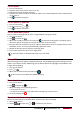
1. Tap .
2. TaptoturnonoroffBluetooth.
3. AlistofavailableBluetoothdeviceswillappear.
4. Selectthedeviceyouwishtoconnectwith.
5. TapPair.Thepairingismadeifyourpairingrequestisacceptedbytheotherdevice.
Unpair with a Bluetooth device
1. Selectthedeviceyouwanttounpairandthentap .
2. TapUnpair.
Send data via Bluetooth
1. Tap .
2. TaptoturnonoroffBluetooth.
3. PairwithaBluetoothdevice.
4. Selectthefileyouwanttoshare.
5. Tap tosendthefileviaBluetooth.
6. Selectadevicetostartsendingthefile.
Receive data via Bluetooth
1. Tap .
2. TaptoturnonoroffBluetooth.
3. TapyourtabletmodeltomakeitvisibletoallnearbyBluetoothdevices.
4. AccepttherequestandpairwiththeotherBluetoothdevice.
5. Opennotificationspanel,tapAccept.
ThefilesreceivedviaBluetootharestoredintheBluetoothfolder.