
User's Manual DATA PROJECTOR U4-232, U4-232h
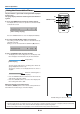
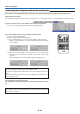
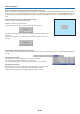
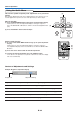
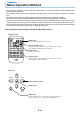
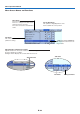
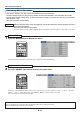
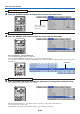
Table Of Contents
- INDEX
- English
- IMPORTANT SAFETY INFORMATION
- Major Features
- Table of Contents
- Checking the Supplied Accessories
- Names of the Main Unit Parts
- Names of the Remote Control Parts
- Preparing the Remote Control
- The Procedure Up to Projecting to the Screen
- Placement Guide
- Connecting Personal Computers and Video Equipment
- Power Cable Connections and Switching the Power On/Off
- Adjustment of the Projection Screen
- General Operation
- Input Selection
- Automatic Adjustment of Analog RGB
- Selection of Aspect Ratio
- Freezing a Moving Picture
- Cancelling Video and Audio Temporarily
- Lamp Mode
- Keystone
- Adjustment of the Volume
- Enlargement of the Image and Video Movement
- Using the Presentation Timer
- Protecting the Projector with the Security Lock
- Using the Quick Menu
- Menu Operation Method
- Image
- Color
- View
- Setup
- Option
- Info.
- When an Indicator is Lit or Blinking
- Troubleshooting
- Cleaning
- Replacing the Lamp Cartridge
- Specifications
- Table of Supported Frequencies
- Cabinet Dimensions
E-38
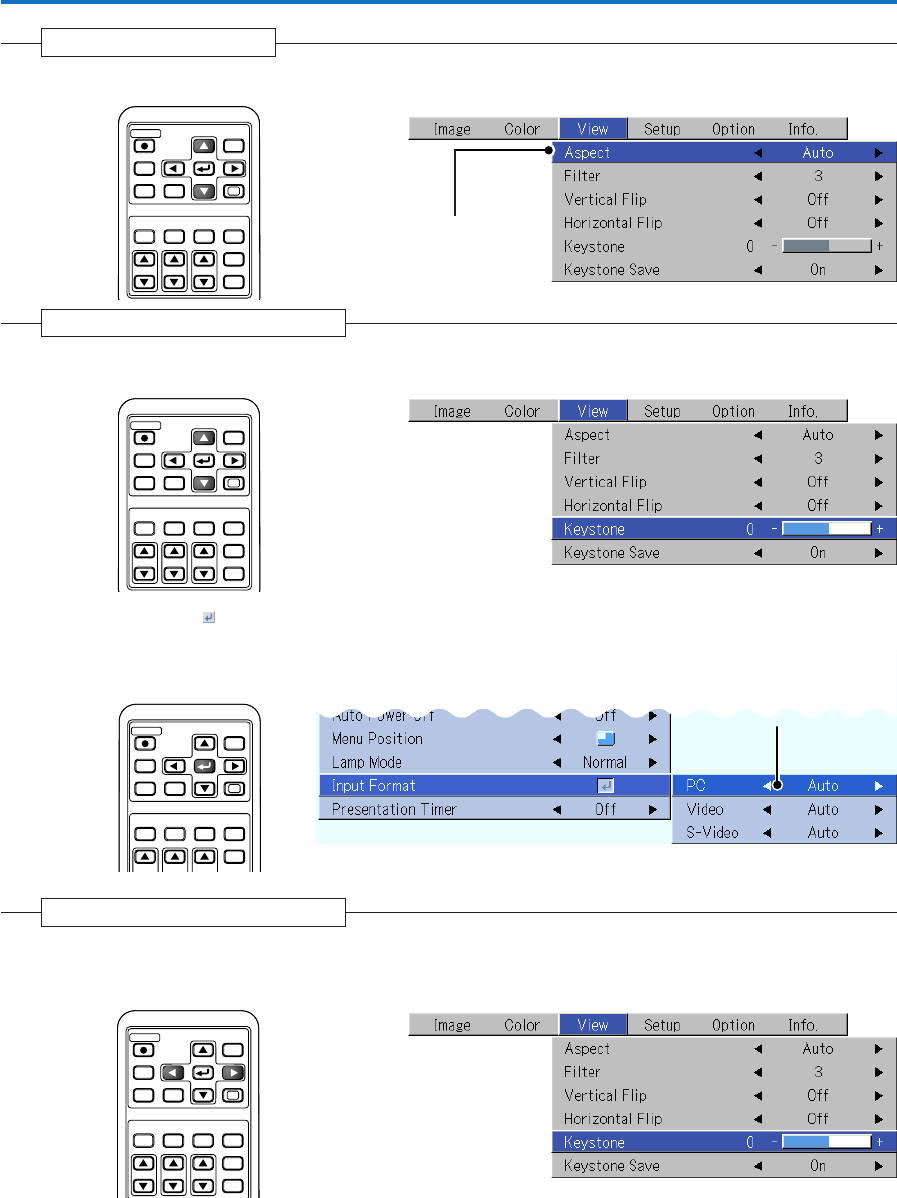
3 Press the 왔 SELECT button to display the item name selection cursor.
Displaying the Cursor
This condition al-
lows selection of the
item name.
RGB
STANDBY
VIDEO
FREEZE
MUTE
ECO AUTO
ASPECT
TIMER
VOL KSTN ZOOM
CANCEL QUICK
MENU
ENTER
Q
1234
Menu Operation Method
4
Press the SELECT (왖왔) button to align the cursor with the item name
Selection of the Item Name
RGB
STANDBY
VIDEO
FREEZE
MUTE
ECO AUTO
ASPECT
TIMER
VOL KSTN ZOOM
CANCEL QUICK
MENU
ENTER
Q
1234
Items for which the Icon Is Displayed
Press the ENTER button to display the submenu.
Press the SELECT (왖왔) button and align the cursor with the desired item name.
There are also some items for which the setting display or the verification display will appear. Please see the various item
descriptions.
RGB
STANDBY
VIDEO
FREEZE
MUTE
ECO AUTO
ASPECT
TIMER
VOL KSTN ZOOM
CANCEL QUICK
MENU
ENTER
Q
1234
Sub menu
5
Press the SELECT (왗왘) button and make the adjustment (or setting) while viewing the image
When a button is pressed, the image will also change.
Making Adjustments/Settings
Adjustment display: Each press of the button results in a change of 1 point and continued presses
cause changes to proceed in order.
Setting display: The setting contents display changes with each press of the button.
RGB
STANDBY
VIDEO
FREEZE
MUTE
ECO AUTO
ASPECT
TIMER
VOL KSTN ZOOM
CANCEL QUICK
MENU
ENTER
Q
1234