
User's Manual DATA PROJECTOR U4-232, U4-232h
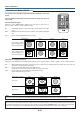
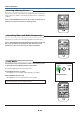

Table Of Contents
- INDEX
- English
- IMPORTANT SAFETY INFORMATION
- Major Features
- Table of Contents
- Checking the Supplied Accessories
- Names of the Main Unit Parts
- Names of the Remote Control Parts
- Preparing the Remote Control
- The Procedure Up to Projecting to the Screen
- Placement Guide
- Connecting Personal Computers and Video Equipment
- Power Cable Connections and Switching the Power On/Off
- Adjustment of the Projection Screen
- General Operation
- Input Selection
- Automatic Adjustment of Analog RGB
- Selection of Aspect Ratio
- Freezing a Moving Picture
- Cancelling Video and Audio Temporarily
- Lamp Mode
- Keystone
- Adjustment of the Volume
- Enlargement of the Image and Video Movement
- Using the Presentation Timer
- Protecting the Projector with the Security Lock
- Using the Quick Menu
- Menu Operation Method
- Image
- Color
- View
- Setup
- Option
- Info.
- When an Indicator is Lit or Blinking
- Troubleshooting
- Cleaning
- Replacing the Lamp Cartridge
- Specifications
- Table of Supported Frequencies
- Cabinet Dimensions
E-30
General Operation
Enlargement of the Image and Video Movement
This function digitally enlarges the personal computer image and video
image.
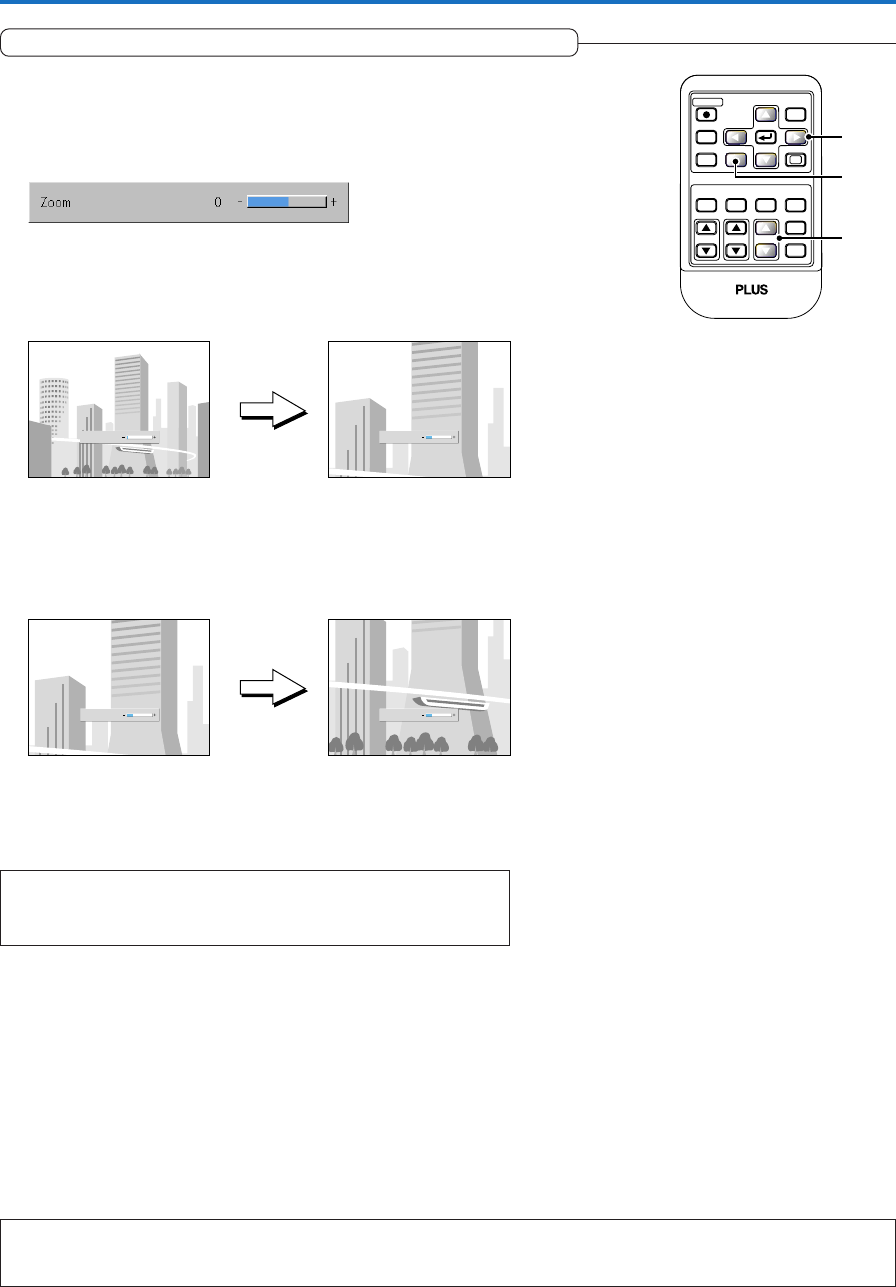
(1) Press the ZOOM button to enlarge the image.
The zoom display appears when the ZOOM button is pressed.
When the 왖 button is pressed, the image is enlarged approximately 2
times, and when the 왔 button is pressed the image is reduced (re-
turning to 1:1).
• The enlargement function cannot be used with digital RGB inputs.
(No enlargement) (Approximately 2 times enlargement)
The image can also be moved in the following circumstances.
• When “Aspect” is set to “Real” by the signal of the Analog RGB, and the input resolution is higher than
the display resolution of the projector.
• When “Aspect” is set to “Zoom” by the video signal.
Note:
* Zoom and image movement functions are cancelled when the input is switched.
* Movement of the screen will not be possible when the menu screen is being displayed.
Zoom
0
Zoom
21
(3) Press the CANCEL button to immediately close the display.
The display will close when there has not been an operation in about
10 seconds.
(2) Pressing the SELECT (왖왔왗왘) buttons on the remote control at
the time of the zoom operation will cause the display position to
move.
(There will not be any movement when zoom is at 0.)
(Approximately 2 times enlargement) (Movement)
Zoom
21
Zoom
21
Note:
After magnifying the image, be sure to use the ZOOM button to bring the gauge
value back to “0”.
(3)
(1)
(2)
RGB
STANDBY
VIDEO
FREEZE
MUTE
ECO AUTO
ASPECT
TIMER
VOL KSTN
CANCEL QUICK
MENU
ENTER
Q
1234
ZOOM