
User's Manual DATA PROJECTOR U4-232, U4-232h
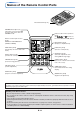
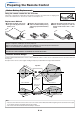

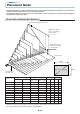
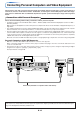

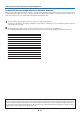
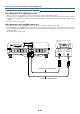
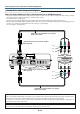

Table Of Contents
- INDEX
- English
- IMPORTANT SAFETY INFORMATION
- Major Features
- Table of Contents
- Checking the Supplied Accessories
- Names of the Main Unit Parts
- Names of the Remote Control Parts
- Preparing the Remote Control
- The Procedure Up to Projecting to the Screen
- Placement Guide
- Connecting Personal Computers and Video Equipment
- Power Cable Connections and Switching the Power On/Off
- Adjustment of the Projection Screen
- General Operation
- Input Selection
- Automatic Adjustment of Analog RGB
- Selection of Aspect Ratio
- Freezing a Moving Picture
- Cancelling Video and Audio Temporarily
- Lamp Mode
- Keystone
- Adjustment of the Volume
- Enlargement of the Image and Video Movement
- Using the Presentation Timer
- Protecting the Projector with the Security Lock
- Using the Quick Menu
- Menu Operation Method
- Image
- Color
- View
- Setup
- Option
- Info.
- When an Indicator is Lit or Blinking
- Troubleshooting
- Cleaning
- Replacing the Lamp Cartridge
- Specifications
- Table of Supported Frequencies
- Cabinet Dimensions

E-17
Connecting Personal Computers and Video Equipment
To Output the External Output Signal of a Notebook Computer
When projection will be with a notebook computer connected, knowledge will be required for the cable connection and notebook
computer startup procedure as well as the operation that follows notebook startup. Please consult the instruction manual of your
notebook computer or the on-line help while performing the following procedure.
1
Check whether a signal is being sent from the notebook computer to the projector.
An indication appearing on the liquid crystal display of the notebook computer does not necessarily mean that an external
output signal is being output.
2
Should a sign not be output from the notebook computer, please try the operation described below.
For an IBM PC/AT, DOS/V computer, press the [Fn] key plus any one of the [F1] to [F10] keys. (See the table below.)
Note
When the liquid crystal display of the notebook computer and the projector are displayed at the same time, the projected image might not be
correct even though the liquid crystal display shows a correct indication. Should this occur, stop the simultaneous display of the notebook
computer and try the mode with external output only. (Try an operation such as that described in aforementioned Step 2 and try closing the
liquid crystal panel which might result in external output only.)
Manufacturer Model Key
DELL All computers Fn + F8
EPSON All computers Fn + F8
FUJITSU All computers Fn + F10
iiyama All computers Fn + F3
IBM All computers Fn + F7
NEC All computers Fn + F3
Panasonic All computers Fn + F3
SHARP All computers Fn + F5
SONY All computers Fn + F7
SOTEC All computers Fn + F3–F5
TOSHIBA All computers Fn + F5
Victor All computers Fn + F10
Note: Table information is current to December 2003.