
User's Manual



4-3 PERSONAL
This setting includes: Accounts & sync, Location services, Security, Language & input,
Backup & reset.
Accounts & sync
You can change general sync settings and manage accounts.
General sync settings enable you to select background data and Auto-sync. Toggle the switch in the
upper right of the display on to activate.
Account management settings enable you to add accounts, or use an existing account. You can log in
by using an existing account to view information in your account, or use advanced services and
applications for the IdeaTab.
Location services
You can select to use Google's location service, GPS satellites, or Use assisted GPS to
determine your approximate location.
Google's location service: Pinpoint your location using WLAN or mobile networks.
GPS satellites: Pinpoint your location using GPS.
Use assisted GPS: Under certain conditions, can improve startup performance, or time-to-first-fix
(TTFF) of a GPS satellite-based positioning system.
Security
Security settings include: SCREEN SECURITY, ENCRYPTION, SIM/RUIM CARD LOCK,
PASSWORDS, DEVICE ADMINISTRATION and CREDENTIAL STORAGE.
SCREEN SECURITY: After setting up the screen lock, there will be four options displayed: Screen
lock, Automatically lock, Vibrate on touch, Owner info.
• Screen lock: You can lock the display in one of four ways: Tapas LockScreen Style,
Pattern, PIN, and Password. You can deactivate also the screen lock here by selecting
None as well.
Tap Tapas LockScreen Style, and select Android1.6 Lockcreen, Android2.3
Lockcreen, Android4.0 Lockcreen, and Tapas Lockcreen.
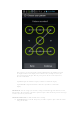
Tap Pattern, and use your finger on the screen (as illustrated) to draw an unlock
pattern. Once you have set the unlock pattern, you will then be able to turn the
Make pattern visible on/off.