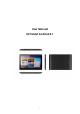
User Manual U2 Tablet Android 4.
Contents Welcome ................................................................................................................. . 3 Important Notices.................................................................................................... . 3 Keys and Functions ................................................................................................. . 4 I. Getting Started ..................................................................................................... . 5 1.
Welcome Thank you for purchasing this tablet. It brings you much convenience for your business (supports Word, Excel, send & receive e-mails...) and entertainment (supports 3D game, chatting, movie playback, eBooks.....). Running on Android 4.1, with a 1.6GHz processor and highly responsive capacitive touch screen, it brings you wonderful user experience. Before beginning, please refer to this user manual carefully.
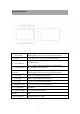
Keys and Functions 1. Power jack (DC input) Hold and press to turn on or turn off the unit. Briefly press to turn on or turn off the screen. 2. HDMI Connect to TV output via a HDMI cable 3. Mini-USB slot Connect to a computer via a USB cable to transfer data (e.g., music, videos, photos, and other files). 4. Front camera 0.3 M pixel Front camera 5. Power and lock key Hold and press to turn on or turn off the unit. Briefly press to turn on or turn off the screen. 6.
I. Getting Started 1.1 Turn on/off 1.1.1 Turn on To start your tablet, press and hold the power key at the right side of your tablet for a while. Tab and drag the lock out of the circle to unlock. → Tab and drag the lock out of the circle to unlock. Drag the lock to right: you will go to the home screen. Drag the lock to left: you will go to camera directly. 1.1.
II. Your Home Screen a c b d e a. Google search b. Voice search c. ESC key d. Home e. Recent operations f. Screenshot g. Volume h. Volume + i. WIFI Signal j. Battery status f g h i j Tap to enter Google search page Tap to open voice search Tap to return to the previous screen/ page. Tap to return to your home page Tap to show your recent operations Tap to make a screenshot Tap to lower the volume Tap to upper the volume There will be WIFI signal when WIFI connected Show battery status 2.
2.2 Add/delete applications on home screen: There are several apps in the home screen, you can also add more frequently-used app icons in this home page and delete some less frequently-used ones. Tab the app launcher in the top right corner to go to all apps panel, tap and move the app you want to the home screen. To delete an app from home screen, tap and hold it, and them movie it to the remove icon 2.3 Add widgets to home screen: Tab all Apps launcher→Tab WIDGETS.
Your tablet lists the networks it finds within range. Tap a network to connect. If necessary, enter Network SSID, Security, and Wireless password, and tap “Connect”. When your tablet is connected to the network, the wireless indicator appears in the status bar. Waves indicate connection strength. 3.1.2 Turn off Wi-Fi Please turn off Wi-Fi if you‟re not using it to save the battery. To turn off Wi-Fi, Tab it again. 3.1.3 Add a Wi-Fi network Users may also add a Wi-Fi network under “Wi-Fi settings”.
3.2.3 Pair with the Bluetooth device Tap the name of an available Bluetooth device to pair with. In the popup “Bluetooth pairing request” dialog, type a PIN. If the pairing is successful, your tablet connects to the device. Example: to transmit a photo Go to “Gallery”, choose a photo to share. Tap icon or any spot on the photo to view a submenu. Tap → → , and then choose the device name in the Paired devices list. The photo will then be sent. You can touch the right icon to unpair the device.
Tap the address bar, the Android keyboard will appear for your entry of keywords or URL. New tab bookmark this page Open bookmarks Submenu Tab the submenu. icon in the top corner of the browser page to open the V. Install and Manage Apps 5.1 Install Apps Go to the “ApkInstaller” to install and manage your apps. To install an application, follow below steps: 1. Tap to open the „APKInstaller‟ → „Install‟ → then tap “Internal Memory” or “TF Card”. Available .apk files will appear at the right side.
with your OS or the downloaded .apk file is a broken one so you may need to download a full version. 5.2 Manage Apps Tap to open the „APKInstaller‟ → „Manage‟. Tab the app and then you can launch, export, and uninstall it. You can also go to “AppS” under “Settings” to manage apps. VI. Multi-media Functions 6.1 Music After loading your music into your tablet, tap the music icon to open the music player. You can select songs by Artist, Albums, songs or Play lists. Tap to select.
Tab in the bottom line to open a submenu in music playing page. 6.2 Video You can play videos saved in your tablet or TF card. To play, tap Video icon to launch the video player: Tab the video you would like to play. Tab the screen to show the video tool bar. You can play back, fast forward, pause your video here.
can also add bookmark for your video, adjust brightness, or set screen ratio here. Here is the toolbar: With the Wi-Fi on, you are also able to view an on-line video. 6.2.1 HDMI output a. Tap 'Video player' or other video players and play a required movie. b. Adjust your TV set and select “HDMI” output c. Connect the tablet to your TV via HDMI cable, and wait for a few seconds for your TV set to receive signal. You can also operate on your tablet while HDMI connected.. 6.
Tab the picture you want to display it, and slide right or left to show other pictures. Tap the menu icon, you can edit, rotate, crop, or set it as wallpaper. 6.4 Camera Tap the icon to open camera. Your tablet is built in 0.3M front camera and 2M rear camera. You can take a photo, or a video both by front camera and rear camera. Note: After you power on your tablet, you can go to camera directly by drag the lock to left.
etc. VII. Settings Tap the “Settings” icon to go to settings. You can check and set wireless&networks, sound, display, storage, Battery, Accounts &sync, security, language, date&time, about tablet, etc. Wi-Fi: tap “Settings” → “Wireless & networks” to turn on wifi and scan. It will show a list of Wi-Fi networks scanned in range. Choose a strong Wi-Fi network to connect. (You may need to input the password).
Display: To set Brightness, Wallpaper, Sleep time-out, Font size here. Storage: Check internal storage here. If you insert a Micro SD card, or USB disk, you can check the total and available space for your Micro SD card or USB disk. Please unmount it to safely remove it. Battery: Check the Battery status here. Display: Tab “Settings” → “Display” to set brightness, screen time-out, etc. Language & input: to set language and keyboard input.
1. Please read the below carefully when you try to upgrade your tablet. 2. Please make sure that the firmware matches your tablet. 3. Please backup your data before upgrading, the storage will be formatted when upgrading, data will be lost and unrecoverable. 4. Please do not touch any buttons on the tablets while it is upgrading. 5. Make sure that your tablet is with enough power, you‟d better charge the tablet before upgrading, in case of upgrading failure due to low battery. 6.
Press the Volume - key for a few seconds, at the same time press “reset”, release ESC until the tool finds your tablet, make you tablet set into upgrading mode. 3. After the PC finding out the tablet, and the device icon turns green, click “upgrade” for upgrading.
Note: If the device detected under the status of Pink , please click “Switch”, the upgrading status will switch to Green (standby status) The tablet is upgrading the firmware 19
The tablet will turn on automatically, now you could disconnect the tablet to the PC. 9.4 Instructions of Installing Rock chip USB driver If you do the upgrading for the first time, please install the Rock chip USB driver in accordant with the bellowing instructions. If you are upgrading via your PC for the first time, it requires your PC to install Rock chip USB driver, after your tablet entering into upgrading mode, it will pop out a guide advising you that the PC finds new hardware.
4. Load the USB driver included in the “RK batch tool” to install the USB driver. Note: Do not turn on “USB Debugging” in the setting when upgrading firmware. 5. When you finish the driver installation, you can come back to upgrading procedures. Troubleshooting 1. Can not turn on the tablet Check the tablet‟s power level; please charge it before starting it. In case your tablet still cannot be turned on, you may try to reset it 2. No sound from earphone Check if volume is set to „0‟.