
User guide






21
Using your Optik TV service
Watching a rented On Demand program
Watch your rentals as many times as you want within the rental period (48 hours for most
rentals).
1 Press to view your current rentals.
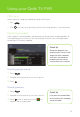
2 Use to select My Videos folder. Use to enter My Rentals. Use to
select the movie you would like to watch and press .
3 Use to Watch icon to start playing the movie.
Features for On Demand
My Wishlist – Bookmark movies that you would like to watch by selecting the heart icon
on the program information page. To view the movie titles on your wishlist, simply select
My Videos, and then My Wishlist.
Search – Quickly find a movie by searching for the title, actor/actress or director.
Optik on the go – Enjoy your favourite On Demand entertainment on your smartphone,
laptop or tablet on the go. Get access to thousands of On Demand TV shows and
movies or rent a movie once and watch it on your TV, PC, smartphone, or tablet within
its rental period.
Check out this app at telus.com/apps or on page 13 of this guide.
Quick tip
Check out the TV On Demand category. TV On Demand shows and movies are free
to watch with a subscription to the channel.