
User guide



18
Can’t find what you are looking for? Visit telus.com/tvhelp for more Optik TV help info.
18
Manage my channels
You can instantly add new channels to your TV line-up.
Adding a channel or pack
1
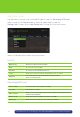
Using your remote, tune to a channel you are not subscribed to,
and the Manage my channels app will load automatically in just under a minute.
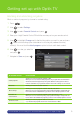
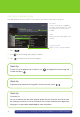
2 Navigate to highlight the Subscribe button and press on your remote control. If you
want to exit the app, you can use the down arrow button on your remote, highlight the
Cancel button onscreen and press on your remote control.
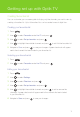
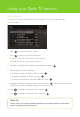
3 Choose the channel or pack you want to add by using on your remote.
Navigate to highlight Subscribe and press on your remote.
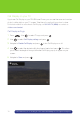
4 Enter your 4-digit Purchase PIN if you have parental controls set-up.
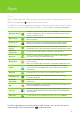
5 A confirmation screen will pop-up. Select Close and press on your remote.
Your new programming will be on-screen in less than 15 minutes
At any time you can exit the Manage my channels app by selecting the EXIT button on
your screen or selecting GUIDE.
An enhanced version of the Manage my channels app is available from your account
on telus.com.
Please note, the total amount showing on your screen through the Manage my channels
app does not include any promotional discounts. Also, because we bill one month in
advance, any changes to your account that are made in the middle of your billing cycle
(the 30-day period based on the date your account was activated) will appear on your
next bill as partial-month charges associated with the change.
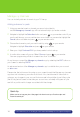
Quick tip
Make sure to set up your pins. See page 8 for how to set up a Purchase pin and
Parental control pin.