
User guide



10
Can’t find what you are looking for? Visit telus.com/tvhelp for more Optik TV help info.
10
Display settings
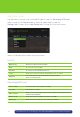
Using your TV’s user guide as a reference, you can adjust your screen settings by
choosing the most suitable resolution from this list and then following steps 1 to 8:
n 4:3 standard definition
n Widescreen standard definition
n 720p High Definition
n 1080i High Definition
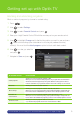
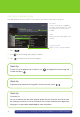
1 Press .
2 Use
to highlight Settings.
3 Use to select Television and press .
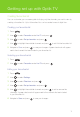
4 Use to select Screen aspect ratio and High Definition and press .
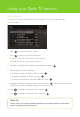
5 Use to select the setting that is appropriate for your TV.
6 Navigate to Continue and press .
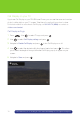
7 Navigate to Start test and press . The system will verify whether your TV can display
the selected setting.
8 If you can see the video on your screen, use to select Keep setting
and press to save.
Or if you see a black screen, your TV may not be able to display the selected setting or it
may not be properly connected to your digital box. Use to choose another setting
or check your cables to ensure proper connection between your TV and digital box.
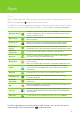
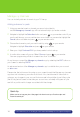
Quick tip
To remove the black bars that appear on both sides of the screen when you watch
standard definition programming on an HDTV, press
, and use
to select
Aspect Ratio to find the optimum setting for your TV.