
Operation Manual




199
Printing from the Camera
9
1
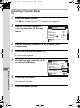
Use the four-way controller (23) to select [DPOF
AUTOPRINT] on the PictBridge menu.
2
Press the 4 button.
The Print w/DPOF settings screen
appears.
Use the four-way controller (45) to
check the number of copies for each
image, whether the date is imprinted or
not, and total number of copies.
3
Press the 4 button.
The print settings confirmation screen appears.
Refer to Steps 7 to 11 of “Printing Single Images” (p.197) for details on
how to change the settings.
4
Press the 4 button on the print settings confirmation
screen.
The images are printed according to the settings.
Press the 3 button to cancel printing.
Disconnect the USB cable from the camera and printer when you have
finished printing.
1
Turn off the camera.
2
Disconnect the USB cable from the camera and printer.
Printing Images Using the DPOF Settings
Disconnecting the USB Cable
1
10
10
Print w/DPOF settings
P r i n t w / D P O F s e t ti n g s
Print w/DPOF settings
1
10
MENU
OK
100-0046
100 -00 4 6
100-0046
Print
P r i n t
Date
D a t e
Copies
C o p i e s
Total
To t al
Print
DateCopies
Total
e_kb445.book Page 199 Thursday, February 14, 2008 1:45 PM